Top 5 AI-Powered Chrome Extensions for YouTube
AI Chrome extensions can speed up watching, researching, and optimizing YouTube content. Here are five useful options for viewers and creators.
1. Glarity

Glarity is an open-source Chrome extension that uses ChatGPT to summarize search results and YouTube videos. When a video starts playing, it can display an AI-generated summary on the right side of the player.
You can customize the ChatGPT prompt Glarity uses. It includes example prompts, but you can also write your own to shape how the summaries look.
Glarity requires a ChatGPT account, and you can also connect it to OpenAI’s API.
If you only want YouTube summaries, you can disable summaries on other sites in the settings. A manual mode lets you generate a summary only when you ask for it.
2. VidAI

VidAI is a Chrome extension built for YouTube creators. It helps you optimize video titles, descriptions, tags, chapters, and hashtags directly inside YouTube Studio.
VidAI can translate your video titles, descriptions, hashtags, and subtitles into 90+ languages and publish them as official YouTube localizations. It never overwrites your original title or description. You can use a fast API mode (after authorizing your channel) or a browser mode that automates YouTube Studio in the open tab.
Inside Studio, VidAI also offers AI tools in your channel’s language to draft and refine titles, descriptions, tags/keywords, chapters, hashtags, and even comment replies.
VidAI is free to install. Translations and AI features use credits. Paid plans on vidai.help include monthly credits, and you can buy extra credit packs. Long-term subscribers receive loyalty bonuses. Details are on the pricing page.
You can try VidAI via the web app at https://vidai.help/ and use the free thumbnail competitor tester at https://vidai.help/thumbnail_tester. For step-by-step translation guidance, see the guide at https://vidai.help/p/translate-youtube-video-90-languages.
3. Eightify

Eightify is a GPT-powered Chrome extension that turns YouTube videos into short summaries. It adds a "Summarize" button next to the "Like" button and shows the summary on the right side of the video.
Its core format is an eight-point summary that covers the main ideas in the video. You can expand individual points for more context. Eightify can also generate summaries in multiple languages.
On the free plan, you get a limited number of summaries. Free summaries only apply to videos that meet certain criteria, such as a minimum view count and a maximum length. For broader use, you can upgrade to Eightify Pro.
Download Eightify (Free, subscription available)
4. Upword

Upword is a note-taking and summarization tool that also works well with YouTube. Compared with many summarizers, its outputs tend to be more detailed.
For example, an 11-minute YouTube video might be condensed into a multi-hundred-word summary, with an accompanying time-stamped transcript. The timestamps let you jump back to specific parts of the video while you review the notes.
Advanced features such as personalized notes and sharing options are available on a paid subscription, with a short free trial to test them.
Download Upword (Free, subscription available)
5. ChatGPT - Summarize Everything!
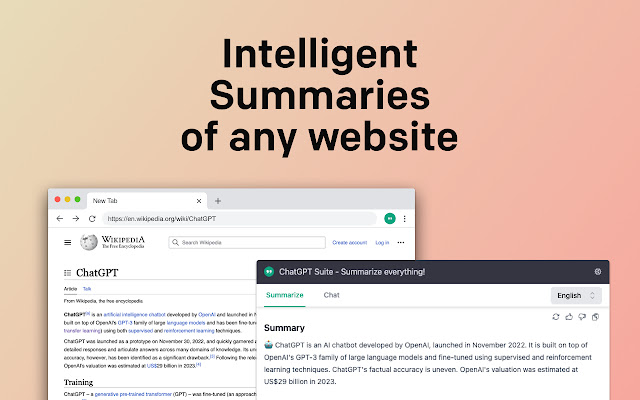
"ChatGPT - Summarize Everything!" focuses on concise YouTube video summaries. By default, it produces a short summary paragraph followed by seven key bullet points.
You can edit its prompt template, using placeholders for the title, URL, and language so the extension can adapt its requests to different videos.
It also works on articles and other text, not just YouTube. If you do not like the first summary, you can have it generate another version. It supports multiple languages and can connect to the OpenAI API.
Download ChatGPT - Summarize Everything! (Free)
Used well, these extensions can save time on watching, note-taking, and optimization so you can focus more on creating and less on manual busywork.
📖 Read next: How to translate a YouTube video into 90+ languages in one click — titles, descriptions & subtitles, the complete step-by-step guide. Then compare plans or install VidAI for Chrome.