How to Add Chapters and Timestamps to a YouTube Video in One Click (YouTube's Rules, VidAI's AI Chapters, What to Check)

Add chapters and timestamps to a YouTube video in one click: VidAI reads the video's subtitles, finds where the topics change, and returns a YouTube-ready list (00:00 Intro and on) that you insert into the description. This guide covers YouTube's own rules for chapters, the exact steps in Studio, the per-channel settings, what it costs (10 credits), and the five things to check before you save.
🇺🇦 Читати українською: Як додати розділи й таймкоди до YouTube-відео одним кліком
Chapters are the cheapest improvement a long video can get. They turn the progress bar into clickable segments, let YouTube show key moments in search results, and keep viewers who would otherwise leave at "where's the part I need?". The catch is making them: re-watching your own video with a stopwatch and typing 07:48 Assembly by hand. VidAI does that part from your subtitles — here's everything about how, including the bits you still do yourself.
First, YouTube's rules (they're the same whoever writes the list)
YouTube builds chapters from a plain list in the description. For it to work:
- The first timestamp must be
00:00(or0:00). - There must be at least three timestamps.
- They must be in ascending order.
- Each chapter must be at least 10 seconds long.
- The list can sit anywhere in the description — top or bottom — and any text around it is ignored.
If any rule is broken, YouTube silently shows no chapters. (YouTube can also generate automatic chapters on its own; your own list always overrides them, and it's usually much better.) Shorts don't display chapters at all — this is for regular videos.
The one-click way, step by step
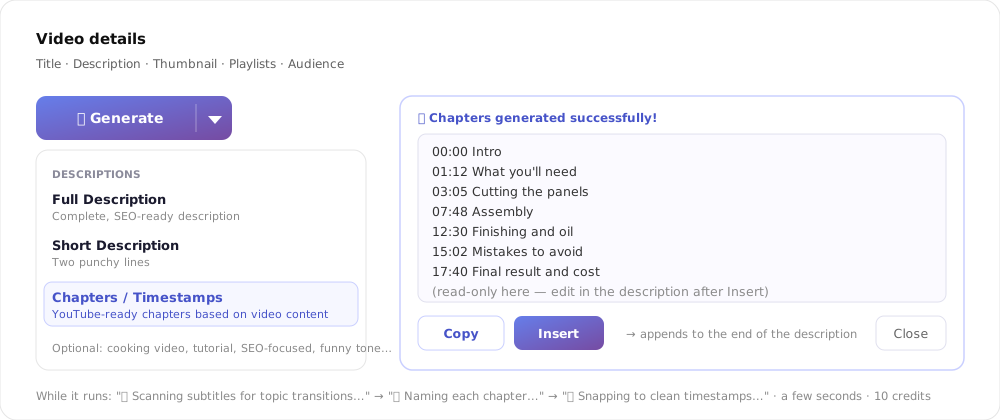
- Open the video in YouTube Studio (Content → the video → Details). The video must be saved — on a draft the item shows "Save your draft first to unlock", because YouTube only creates subtitles once the video exists. Save it as Private if it isn't ready to publish.
- Make sure it has subtitles. YouTube auto-generates them a few minutes after upload; your own uploaded or published captions work too. No subtitles → no chapters (see When it can't, below).
- Click VidAI's 🪄 Generate ▾ button under the description, and in the DESCRIPTIONS section choose Chapters / Timestamps. Optionally type a hint in the box first — "cooking video, tutorial steps, 6 chapters" — it's passed to the AI as extra context.
- Wait a few seconds. The stepper shows "Scanning subtitles for topic transitions… → Naming each chapter… → Snapping to clean timestamps…" and the result panel appears with the list.
- Click Insert — the list is appended to the end of your description under a
📑 🔎 VidAI Chapters:line — or Copy to paste it wherever you like. - Read the list in the description field, fix anything, then Save. The VidAI panel itself is read-only; editing happens in YouTube's description box, where you'd edit anyway.
What happens behind the click
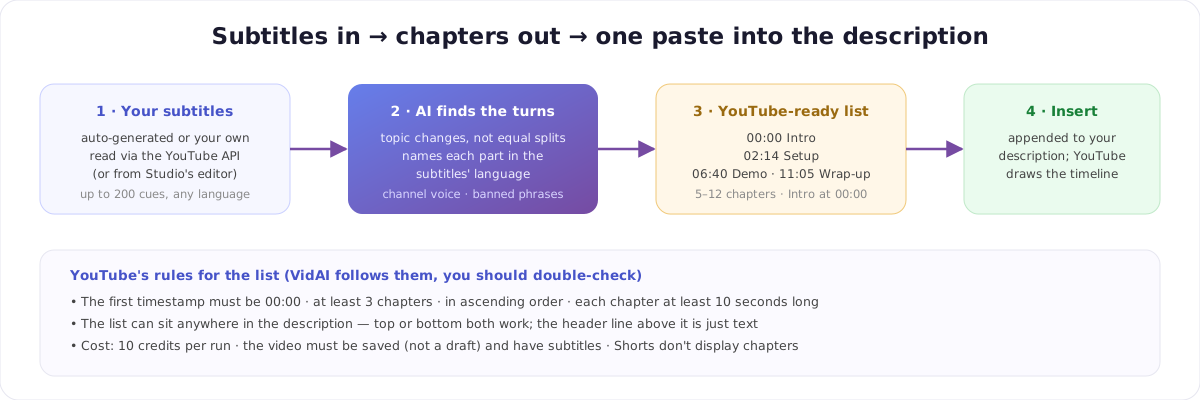
Input: your subtitles, with their timestamps. If your channel is connected to VidAI, the subtitles are read through the YouTube API — preferring the track in the video's language; auto-generated captions are fine. If it isn't connected, the extension opens Studio's subtitle editor for a moment, collects the cues, and closes it. Up to 200 cues are used; for very long videos a representative sample from the beginning, middle and end is taken.
The AI looks for turns, not equal slices. The instruction is explicit: "Focus on natural topic transitions, not just equal time splits or long silences… place chapters where new ideas or lists begin." It writes chapter names in the subtitles' language — a Ukrainian video gets Ukrainian chapters — and, like every generation feature, it reads your channel profile: voice and audience, plus your banned phrases ("Never use these literally"). It deliberately ignores your title patterns; those don't help name chapters.
Output: 5 to 12 lines by default, each MM:SS Title, the first one 00:00 Intro. Lines without a valid timestamp are dropped; the list is capped at 12.
The settings (per channel, for everyone)
In VidAI's ⚙ settings (extension or vidai.help Settings → Chapters — How AI builds timestamped chapters):
- Chapter count — Auto (AI decides, usually 5–12), Short 3–6, Medium 6–10, Long 10–15 (note: the output is capped at 12).
- Format — timestamp first (
07:48 Assembly, the YouTube-standard way) or title first (Assembly — 07:48). Use timestamp-first unless you have a reason. - Always add an Intro at 00:00 — on by default. This is what satisfies YouTube's first rule; turn it off only if you want the AI to name the opener itself (it must still start at 00:00).
These controls are available on every plan.
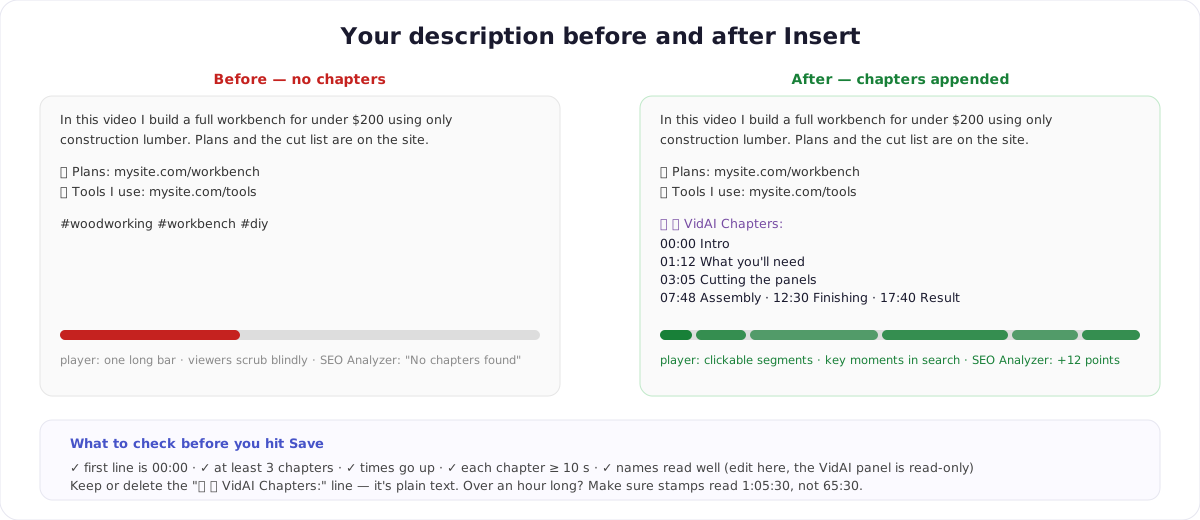
Before you hit Save — the 60-second check
- First line is
00:00✓ · at least 3 chapters ✓ · times ascending ✓ · no chapter shorter than 10 s ✓ - Names read well? Rename any you'd phrase differently — in the description box.
- The
📑 🔎 VidAI Chapters:header is plain text: keep it or delete it. - Over an hour long? Make sure hour-long stamps read
1:05:30, not65:30; fix by hand if needed. - Run VidAI's SEO Analyzer afterwards — chapters present is worth 12 points of its score.
When it can't (and what to do)
| You see | Why | Do |
|---|---|---|
| Save your draft first to unlock | YouTube hasn't created subtitles for an unsaved video | Save as Private, reopen from Content, try again |
| No Subtitles Available | The video has no captions yet | Wait for YouTube's auto-captions (minutes), or upload/publish yours; Add Template inserts a 4-line placeholder you can fill in by hand |
| We can add chapters only for videos with subtitles… | Studio offers "type manually" because there's no track | Same as above |
| A list that splits oddly | The video has few clear transitions, or the sample missed them | Add a hint ("6 chapters: intro, tools, cut, assemble, finish, result") and run again |
What it costs
10 credits per run, on every plan — it's one of the heavier generations because the whole subtitle timeline goes in. Each re-run is another 10, so use the hint box rather than rolling the dice. Copy, Insert and editing are free.
FAQ
Will YouTube definitely show the chapters? If the list follows the five rules above, yes — that's YouTube's logic, not VidAI's. VidAI's defaults (Intro at 00:00, 5–12 chapters from real transitions) are built to satisfy them; the 60-second check catches the rest.
Do I need to connect my channel? No. Connected channels get subtitles via the API; otherwise the extension reads them from Studio's editor on the page.
Which language will the chapters be in? The subtitles' language. Title and description language don't change that.
Can I get chapters for someone else's video? No — it runs in Studio on your own videos.
Does it work on Shorts? It will run, but YouTube doesn't display chapters on Shorts.
Can chapters be added automatically on upload? Not today; it's one click per video in Studio.
Try it on your longest video: Install VidAI, open it in Studio, Generate ▾ → Chapters / Timestamps.