How to Translate a YouTube Video into 90+ Languages in One Click (Titles, Descriptions & Subtitles)

Prefer watching? The whole flow, every setting, and what it costs — in 3 minutes 40 seconds.
Translate a YouTube video into 90+ languages in one click: this step-by-step guide shows exactly how to publish translated titles, descriptions and subtitles with VidAI — every mode, every setting, every screenshot explained.
🌍 Read this guide in: 🇺🇦 Українська · 🇪🇸 Español · 🇧🇷 Português · 🇩🇪 Deutsch
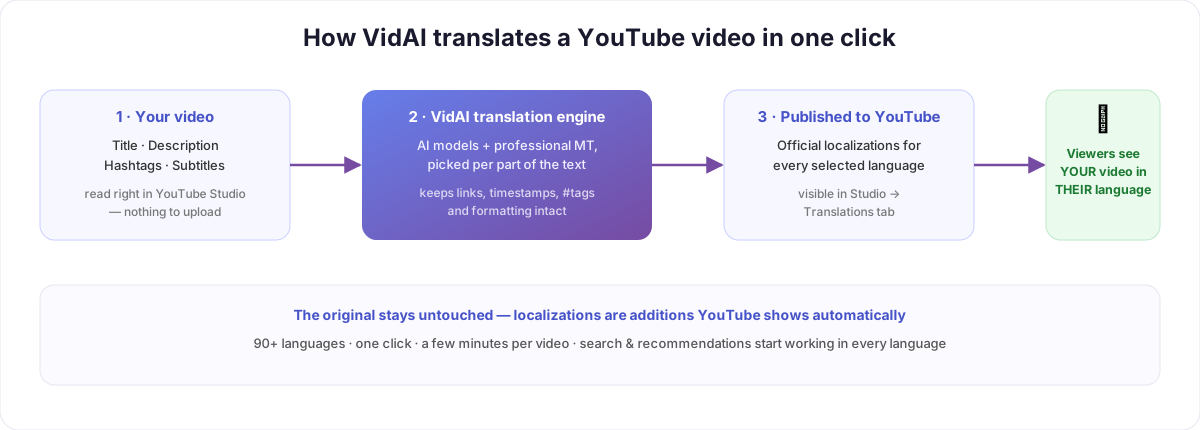
Two thirds of YouTube's watch time happens outside the English-speaking world, but most videos only ever exist in one language. YouTube has had the fix built in for years — localizations, official per-language versions of your title and description that search, recommendations and the video page itself show to each viewer in their language. The catch: Studio makes you add them by hand, one language at a time. For 90 languages that's 180 copy-paste fields per video. Nobody does that.
This guide shows how to do all of it in one click with VidAI — a Chrome extension that lives inside YouTube Studio and publishes translated titles, descriptions, hashtags and subtitles for every language you pick.
What's inside this guide
- Why translated metadata grows views (and what YouTube actually does with it)
- Setup: install, sign in, authorize — 3 minutes, once
- The one-click walkthrough, step by step
- Fast API Mode vs Browser Mode — which to use and why
- Every setting explained (long titles, hashtags, sub-languages, engines)
- Translating subtitles too
- How to verify the result on YouTube
- Troubleshooting and FAQ
Why translate your titles and descriptions at all?
When a viewer in Mexico searches YouTube, the algorithm strongly prefers results in Spanish. If your video's title exists only in English, you are effectively invisible to that search — even if your content (a tutorial, music, gameplay, cooking) would work perfectly for that viewer.
YouTube's localization feature fixes this at the platform level:
- Search: your video can rank for queries typed in Spanish, Portuguese, Hindi, Arabic…
- Recommendations: the sidebar and home feed show your localized title to each viewer.
- The watch page: the title and description render in the viewer's interface language automatically.
- Your original stays untouched. Localizations are additions, not edits. Turn them off, delete them, change one language later — the original title and description never move.
The effect compounds with your back catalog: a video published two years ago starts ranking in 90 new languages the day you localize it.
Before you start: 3 minutes of setup
- Install the extension from the Chrome Web Store: VidAI for Chrome. Works in Chrome and Chromium browsers (Brave, Edge, Arc).
- Sign in at vidai.help with your Google account. This creates your VidAI account and links the extension automatically.
- Authorize your channel (needed for Fast API Mode — the recommended one). On vidai.help, connect the YouTube channel you want to translate for. This is a standard Google OAuth screen; it grants VidAI permission to update your videos' localizations through the official YouTube Data API — the same mechanism tools like TubeBuddy and vidIQ use. You can revoke it any time from your Google account settings.
If you'd rather not authorize anything yet, skip step 3 — Browser Mode works without it (more on modes below).
The one-click walkthrough
Step 1 — open your video in YouTube Studio. Go to Studio → Content → pick a video (or open it straight from the video list). VidAI's buttons appear right in the Studio interface — you never leave YouTube.

Step 2 — pick your languages. Click the VidAI translate button and choose the target languages. You don't have to pick them one by one — presets do it in one tap:
- Top 10 / Top 20 Most Spoken — the biggest audiences on Earth (Spanish, Hindi, Portuguese, Arabic, …).
- Top 10 / Top 20 RPM — the languages with the highest ad revenue per view (great when monetization is the goal).
- Or select any custom set — VidAI supports 90+ languages, and your selection is remembered for the next video.
Step 3 — click translate. That's the one click. VidAI reads the video's current title and description straight from Studio, translates every part with the engine best suited for it (more below), and publishes the localizations to YouTube. A progress bar shows languages completing in real time — a typical 20–30 language job finishes in a few minutes.
Step 4 — verify (optional but satisfying). Open the video's Translations tab in Studio. You'll see every language you picked marked Published in the "Title & description" column:
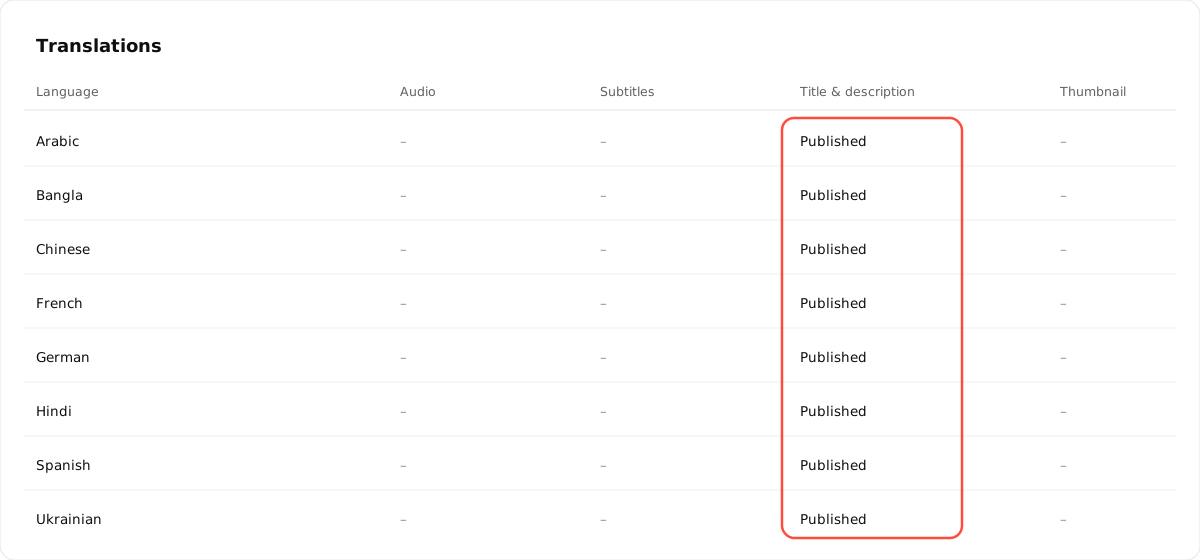
That's YouTube's own UI confirming the localizations are live. Viewers see them immediately.
Fast API Mode vs Browser Mode
VidAI can publish translations two different ways. The dropdown next to the translate button lets you pick:
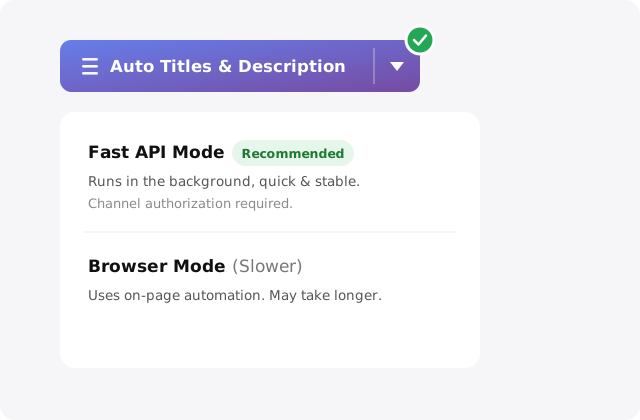
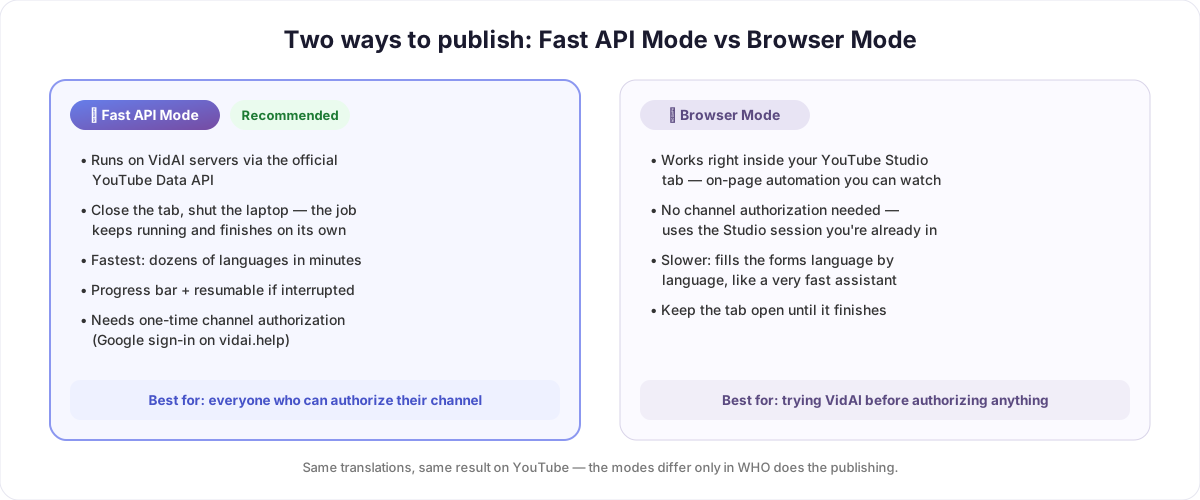
⚡ Fast API Mode (recommended). The job runs on VidAI's servers through the official YouTube Data API. Click translate, close the tab, shut your laptop — the job finishes on its own and the result appears on YouTube. It's the fastest option, shows a live progress bar, survives interruptions, and handles big language lists effortlessly. It requires the one-time channel authorization from setup step 3.
🖱 Browser Mode. VidAI drives the Studio page itself — opening the translation fields and filling them in, language by language, like a very fast assistant using your own logged-in session. Nothing to authorize, and you can literally watch it work. The trade-offs: it's slower, and the tab must stay open until it finishes. It's the right choice for trying VidAI before granting any access, or for channels you can't authorize.
The translations and the end result on YouTube are identical in both modes — the only difference is who does the publishing: VidAI's server or your browser.
Every setting, explained
Click the settings icon in the translate window (or Manage global defaults on vidai.help to set them once for all videos):
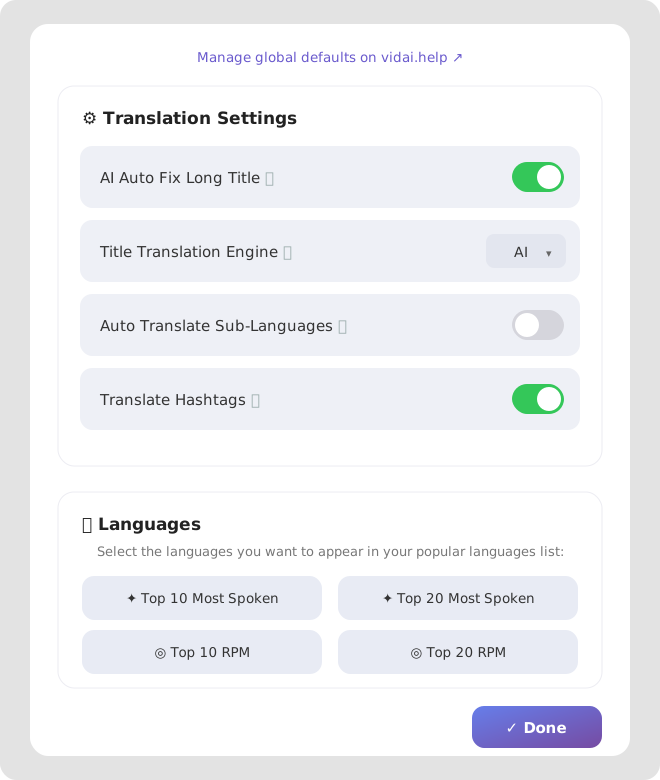
AI Auto Fix Long Title. YouTube hard-limits titles to 100 characters — and translations are often longer than the original (German and Ukrainian famously so). Without this setting, an over-long translated title would have to be cut off mid-word. With it ON, an AI rewrites the translation to fit naturally under 100 characters, keeping the meaning instead of truncating. Recommended: on.
Title Translation Engine. Choose what translates your titles specifically. AI uses a language model that understands context, idioms and wordplay — titles are short, high-stakes text where a literal translation can kill the click. The standard engine uses professional machine translation, which is faster and extremely consistent. Descriptions always use VidAI's hybrid pipeline that routes each part of the text (opening sentences, links, hashtags, timestamps, lyrics) to the engine best suited for it.
Auto Translate Sub-Languages. Some "languages" on YouTube are families: Spanish has a Latin-American variant, Portuguese has Brazil and Portugal, Chinese has Simplified and Traditional, French has a Canadian variant. With this ON, picking the parent language automatically covers its regional variants too — more reach for the same click. Leave OFF if you want to control variants individually.
Translate Hashtags. Two schools of thought, so it's a toggle. ON = hashtags are translated (#cooking → #готуємо), which makes them clickable and discoverable for local viewers browsing local tags. OFF = hashtags stay exactly as you wrote them, which protects brand tags and campaign tags. VidAI is smart about it either way — brand-style tags that shouldn't change survive translation untouched.
Languages presets. The Top 10/20 Most Spoken and Top 10/20 RPM buttons described above live here — they define which languages appear in your quick-pick list.
Subtitles in one click too
Titles and descriptions get you found; subtitles keep foreign-language viewers watching. VidAI has a matching one-click flow for them — the Subtitles button next to the translate button.
One thing to know: YouTube can only attach translated subtitle tracks if the video's original captions are published (auto-generated ones don't count until they're published as yours). VidAI handles this for you:
- Before starting, it checks your captions automatically in the background.
- If the originals aren't published yet, it offers to fix that: "Do it for me" publishes your original captions right there (using YouTube's own caption editor), then continues translating without you lifting a finger — or a guided mode walks you through it click by click if you prefer to stay in control.
- Then it translates the captions into your chosen languages and publishes each track.
The result shows up in the same Translations tab, in the "Subtitles" column — and viewers get real subtitles in their language, not just auto-translate.
What does it cost?
Installing the extension and connecting a channel is free. Translations consume credits, which scale with how much text you translate and into how many languages — a short title into 10 languages costs very little; a 5,000-character description into 90 languages costs more. Every plan on vidai.help/plans includes a monthly credit allowance, long-term subscribers earn loyalty bonuses of up to +100% credits, and you can top up with extra credit packs any time. Before a big job runs, VidAI estimates the cost and tells you if you're short — nothing is ever charged for work that didn't happen.
Troubleshooting
The Translations tab shows "–" for a language I selected. Give it a minute and refresh — languages publish progressively during a job. If it persists, open the VidAI job panel: it shows per-language status and lets you retry just the missing ones.
"Channel authorization required" when using Fast API Mode. Your channel isn't connected (or its access expired — Google occasionally expires OAuth grants). Reconnect the channel at vidai.help and run the translation again; nothing was charged for the failed attempt.
My title translation looks odd in language X. Open the Translations tab in Studio, click that language, and edit it by hand — localizations are fully editable after publishing. Or switch the Title Translation Engine setting and re-run; re-translating an already-translated video is cheap because unchanged parts are served from cache.
Does this violate YouTube's rules? No — localizations are an official YouTube feature, and Fast API Mode publishes them through YouTube's official Data API with your explicit OAuth consent.
Will it overwrite my original title/description? Never. The original is not touched; localizations live alongside it, per language.
FAQ
How many languages can I translate into? 90+, including all major European, Asian, Middle-Eastern and African languages plus regional variants (Spanish for Latin America, Portuguese for Brazil, Traditional Chinese, and more).
How long does one video take? Typically a few minutes for 20–30 languages in Fast API Mode. Browser Mode takes longer since it fills the Studio forms in your tab.
Do I need to keep my computer on? In Fast API Mode — no, the job runs server-side. In Browser Mode — yes, keep the tab open.
Can I translate my whole back catalog? Yes — run videos one by one, or ask VidAI about bulk translation for entire channels; the same engine handles both.
Can I pick different languages per video? Absolutely. The language list is per-run; presets just make the common case one tap.
What text does VidAI see? Only what's already public on your video: title, description, hashtags, captions. It reads them from Studio (or via the API for authorized channels) at the moment you click.
What if I edit my description later? Just run the translation again — VidAI detects what changed, reuses cached translations for unchanged parts, and only translates (and charges for) the difference.
Ready to be found in 90 languages? Install VidAI from the Chrome Web Store and translate your first video — the whole thing takes less time than reading this guide did.
Keep reading
- Which languages should you translate into? Reach vs. revenue — both preset lists in full, and why the top 10 by audience and the top 10 by RPM share only two entries.
- Wrong link in 91 languages? Fix it in 30 seconds — find and replace across every translation at once, then one Republish.
- YouTube didn't generate subtitles for your video — all nine causes, and the rule that decides whether you ever reach a second language.