VidAI 1.9.4: what's new
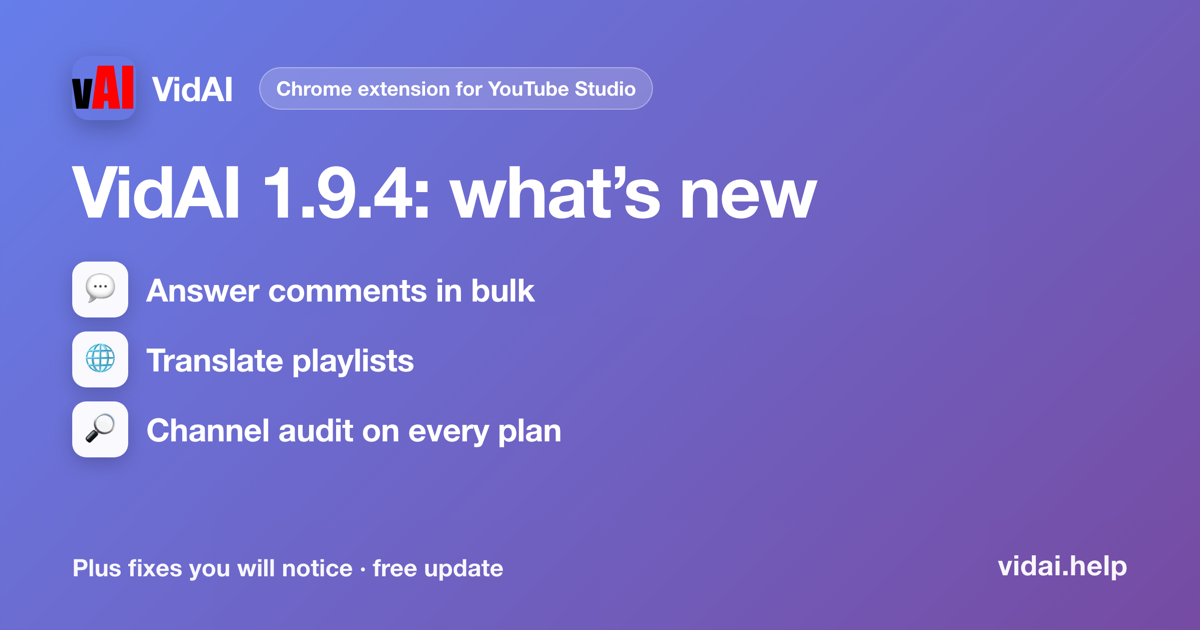
VidAI 1.9.4 is in the Chrome Web Store and updates by itself. Here is what changed: you can answer comments in bulk right in YouTube Studio, let VidAI answer new comments by itself on Pro, Max and Ultra, translate a playlist and publish it through your browser, and audit any channel right on YouTube, now on every plan, plus dozens of fixes.
Answer comments in bulk, right in YouTube Studio
A VidAI card now sits at the top of your channel's comment inbox and of each video's comments. It counts the comments without a reply and drafts answers for the next ten in your channel's voice. You read them, edit, rewrite or untick, and VidAI posts them one by one through Studio's own reply box. Nothing goes through the YouTube API, so it uses none of your quota.
How to use it:
- Open YouTube Studio → Comments (or a video's comments).
- In the VidAI card at the top, press "Answer the first 10 with AI" (with ten or fewer waiting it reads "Answer these 3 with AI").
- Read the drafts. Edit any reply, untick the ones you don't want, or press "✎ Rewrite all (N)" after changing the settings.
- Press "Post 10 comments". Each reply is typed into Studio in front of you. "Minimize — watch Studio" hides the window while it works; "Stop" stops after the reply in progress.
- When the green banner says "✓ Answered 10 of 10 comments", press "✓ Done". "Answer the next 10" starts the next round.
The gear beside the button opens "Comment helper settings · this channel": reply style, pronoun and your channel's persona. Reply styles now say what they mean, with an example.
Cost: a new reply draft is 1 credit. Drafts saved from before come back free. Rewrite is 1 credit per reply it rewrites. Posting is free: no credits, no YouTube quota. Unused drafts are kept for 7 days per channel, so you never pay twice for the same comment.
Automatic replies: VidAI answers comments for you (Pro, Max, Ultra)
The AI Comment Manager answers new comments on your channel by itself, in your voice: thanks, praise and simple questions by default (you can allow feedback and requests too). It checks for new comments every hour, answers comments from the last 2 days, and keeps everything that needs you (criticism, anything it is not sure of) in one short list under "Needs you". Everything it posted is under "Answered", each with Undo.
How to turn it on:
- Connect your channel to VidAI with permission to post comments. In YouTube Studio, the VidAI card above your comments shows "Connect this channel" until it is.
- Press "Turn it on →" on that card, or open vidai.help/comment_manager and press "Turn on auto-replies" for the channel.
- Tell it how you talk in one sentence (or skip): the same channel voice as the comment settings in Studio.
- Approve its first 5 replies: real comments from your channel, each with the reply it would post. Approve, fix or skip. After the fifth, it answers new comments by itself.
- Optional: switch on "A welcome comment on each new video", one comment from your channel under each new upload with an easy question to start the conversation.
Plans and cost: Pro answers up to 100 comments a day, Max 200, Ultra 400 (you can set a lower limit per channel). Each reply is 1 credit. On Free, Entry and Essential the same row is there and "Turn it on" shows the Pro plans. It is in beta: look over what it posts in the first days.
Translate a playlist and publish it through your browser
On a playlist's Languages page in Studio there is a "🌐 Localize title & description" button next to YouTube's own "Add language". Pick languages, VidAI translates the playlist's title and description, then publishes them language by language through your own browser. Studio's Language column is filled, which API-written rows leave blank. No channel connection is needed.
How to use it:
- Studio → Content → Playlists → open a playlist → Languages.
- Press "🌐 Localize title & description".
- Pick your languages (your last choice is remembered per channel), add instructions if you like, keep "Use my browser" as the publish mode.
- Press "✨ Translate playlist" and keep the tab open. The line "Publishing through your browser" counts each language as it lands; closing the window stops the run between languages.
- Press "Refresh page" at the end. Studio lists every language.
Inside YouTube's own per-language playlist dialog there is a "🌐 Translate with VidAI" button that fills that one language; when it says "✅ Done — press Update", press YouTube's Update. YouTube's field drops line breaks there; that is YouTube's rule, not ours.
"Require my review before publishing" is off by default: a job translates and publishes in one go. Switch it on and VidAI translates, then waits for you.
Publishing through the YouTube API is shown but "Temporarily unavailable": writing playlist translations through the API wipes the playlist language you set in Studio, so your browser is the only route for now.
Cost: per language, 1 credit for the title when it is included, plus 1 credit per 300 characters of description. If a language fails, trying again costs nothing: the translations are saved.
Audit any channel, on every plan
On youtube.com, under a channel's buttons, the VidAI pill now has "🔎 Audit". It reads the channel's latest uploads (up to 100, public data only) and gives a score across eight areas: titles, descriptions, tags, publishing rhythm, performance, global reach and more, with what to fix first, a 30-day plan and title rewrites. Tick "This is my channel" and the report speaks to you, with buttons to fix things.
How to use it:
- Open any channel on youtube.com: yours or one you want to learn from.
- Press "🔎 Audit" in the VidAI pill under the channel's buttons.
- Pick the "Report language" and press "Run audit". It takes about 2 minutes; you can close the window, VidAI tells you when it's ready.
- Press "See report". The report has a link anyone can open and "Download PDF".
- From a finished audit, "Compare with a channel": paste a competitor and see why they get more (or fewer) views per video.
What's included: every plan includes channel audits each month: Free 1 · Entry 5 · Essential 10 · Professional 20 · Max 30 · Ultra 50. An audit inside your plan's number costs no credits. On a paid plan, audits beyond it cost 25–50 credits each (shown before you start); on Free, the next one comes on the 1st of the month, or with any paid plan. A comparison counts as two audits (one if you audited that channel in the last 24 hours); the same report in another language is 10 credits.
Fixes
- The translate windows wait for the description to load, so a video with a long description is never priced or run as if it had none.
- The "Wrong channel?" help in Title Studio's settings now opens. It was added in 1.8.15 but never loaded.
- The Help button and the comment settings use the channel of the page you are on, not the last channel you visited.
- One word everywhere for giving VidAI access to a channel: "Connect channel", "Connected channels", "Reconnect". The window that asked for access used to show a raw code; it now reads "Connect channel".
- Dark theme: the playlist window, the resume banner and the comments card render correctly in dark Studio.
- The VidAI Calendar on your channel page shows up exactly once, whatever you do (some pages showed it several times).
Questions people ask
I don't see the card above my comments. Check the version in the popup (1.9.4), reload Studio, and make sure you are signed in to VidAI (the popup shows your e-mail). The card appears on a channel's Comments page and on a video's comments.
Does bulk answering use my YouTube API quota? No. Your own browser types each reply into Studio's reply box.
What does it cost? 1 credit per new draft, 1 per rewrite. Posting is free. Saved drafts come back free.
Why is API publishing for playlists "Temporarily unavailable"? Because it wipes the playlist language you set in Studio. Browser publishing fills Studio's Language column correctly, so it is the only route until YouTube changes that.
How do I update? Chrome updates extensions by itself within about a day. To update now: chrome://extensions → turn on Developer mode → Update. The popup shows the version at the bottom.
How to update
chrome://extensions → Developer mode → Update, or wait for Chrome to do it. Then reload YouTube Studio.
Читати українською: https://vidai.help/p/vidai-1-9-4-shcho-novoho