Wrong Link in 91 Languages? Find and Replace Across Every YouTube Translation at Once

You translated one video into 91 languages — and then noticed the business email in the description is wrong. Or the link died. Or the sponsor code expired. Fixing that by hand means opening 91 language dialogs in YouTube Studio, one at a time. This post shows the 30-second version: one find-and-replace across every translation at once, a review pass, and a single Republish. What it changes, what it can't, and the rules that keep it safe.
🇺🇦 Читати українською: Масове редагування перекладів YouTube: «знайти й замінити» одразу в усіх мовах
Here's a moment every multilingual creator eventually has.
You did everything right. You translated the video's title and description into 91 languages, published them, and for the first time viewers in Brazil, Poland and Indonesia see your video in their own language. Then, a week later, someone emails you — at the old address. You open the description and there it is: wong@gmail.com. Not in one place. In ninety-one.
YouTube's answer to this is: open the video → Languages → pick a language → edit → save → close → next language. Ninety-one times. Nobody does that. What actually happens is the creator leaves the wrong email in eighty-nine languages and fixes the two they care about.
There's a better way, and it takes about as long as reading this paragraph.
The 30-second version
Open the translation job on vidai.help — every translation VidAI runs gets its own page, listing every language it produced:
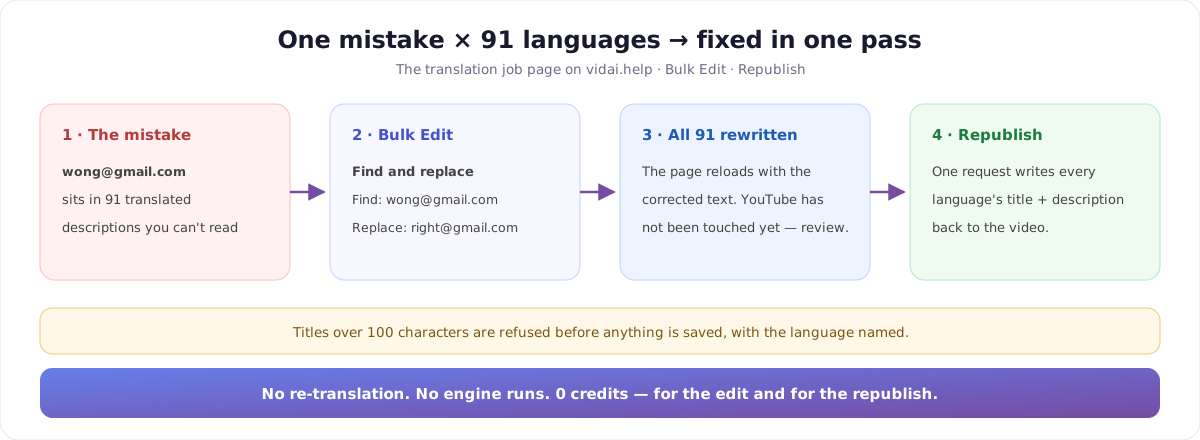
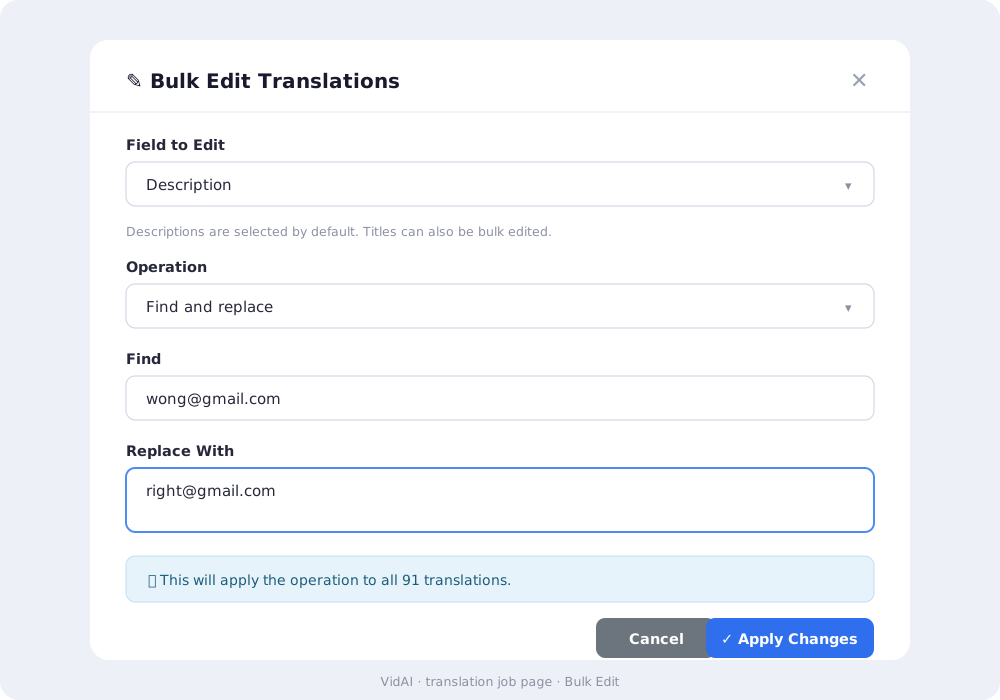
- Bulk Edit → Field to edit: Description → Operation: Find and replace.
- Find:
wong@gmail.com— Replace with:right@gmail.com. - Apply Changes. The panel tells you exactly what it's about to do: "This will apply the operation to all 91 translations."
- The page reloads with the corrected text. Skim a few languages.
- Republish to YouTube. One request, all 91 localizations, done.
That's it. No re-translation, no credits, no ninety-one dialogs.
What you can actually change
Two fields and three operations — which covers far more than it sounds like.
| Field | Operation | What it does |
|---|---|---|
| Description or Title | Add text to the end | Appends your text to every translation. Descriptions get a new line before it; titles get a space. |
| Description or Title | Add text to the beginning | Puts your text in front, same separator rules. |
| Description or Title | Find and replace | Replaces every occurrence of a string in every language. Leave Replace with empty to delete it instead. |
Descriptions are selected by default, because that's where 95% of these emergencies live.
Seven things creators actually use it for
1. A wrong or changed contact address. The story above. One replace, 91 languages.
2. A link that died. You moved from a Linktree to your own site, or a course URL changed. Replace the old URL with the new one everywhere — including in languages you can't read, where you'd never spot it by eye.
3. An expired sponsor or discount code. CODE30 becomes CODE25 across the catalogue in one pass, instead of quietly running an offer you can't honour in 89 markets.
4. A rebrand. Old channel name → new channel name. Your handle changed → replace @oldhandle with @newhandle.
5. Adding a line to everything. Use Add text to the end to append a new social link, a Patreon, a newsletter, an affiliate disclosure or an AI-usage disclosure to every language at once. Each description gets it on its own line.
6. Removing a line from everything. Same operation, one trick: put the text in Find and leave Replace with empty. The panel warns you when that field is blank, because deleting is exactly what it's going to do. Perfect for a promo that ended.
7. Rescuing a brand name that got translated. This one is underrated. Translation engines are helpful — sometimes too helpful. A band called Coffin Crown, a series called Cowboy in a Suit, a product called Night Owl can come back translated into something charming and wrong in a dozen languages. Find the original name, replace it with itself, and it's restored everywhere. Your brand is your brand in every language.
The rules — what it will and won't let you do
These are the actual behaviours, not a summary of intentions.
It edits VidAI's copy, not YouTube. Bulk Edit changes the translations stored on the job page. YouTube sees nothing until you press Republish to YouTube. That gap is the feature: you get to look at the result before your audience does.
It's a literal, case-sensitive replace, not a regex. Email and email are different strings. If a term appears with different capitalisation across languages, run the replace twice.
Leading and trailing spaces are trimmed from what you type. You can't search for " the " with spaces around it, and you can't append a trailing space. Anchor on a word or a full string instead.
It applies to every language in the job. There's no "these 12 only". Which is the point — but it means you should choose a Find string that can't collide with normal text. @ and full URLs are safe. A three-letter word is not.
Titles are capped at 100 characters, and VidAI enforces it. If your change would push any language's title past YouTube's limit, the whole operation is refused and you're told which language broke it — before anything is saved. Nothing is half-applied. (German and Ukrainian translations run long; this guard fires more often than you'd think.)
Descriptions aren't length-checked. YouTube's own 5,000-character limit still applies at publish time, so if your descriptions are already near the ceiling, appending to all of them can be refused by YouTube. Trim first.
There is no undo. The reverse replace is the undo, and it works fine — but read your Find string twice before pressing Apply. And remember nothing has reached YouTube yet, so a mistake at this stage is free.
Then: one button, 91 languages
Republish to YouTube takes everything on the page and writes it back to the video in a single request — every language's title and description together, with your original language and original audio language preserved so YouTube doesn't quietly relabel your video. If you had the sub-language variants setting on when the job ran (things like pt-BR alongside pt), those go up in the same request.
Two practical notes:
- Republishing costs 0 credits. No translation engine runs — the text already exists, it's just being delivered again. You can republish as many times as you like.
- It needs a real, authorised channel. Jobs created through the extension's translate-only mode publish from your browser instead, so the server-side Republish button doesn't apply to them. The job page tells you which kind you're on.
While you're on that page
Two smaller things worth knowing, because they make the review pass fast:
- Sort by Speakers reorders the language list by audience size instead of alphabetically, so the languages that matter most for your channel are at the top when you skim the result.
- Expand / Collapse All opens every language at once. Combined with your browser's own ⌘F / Ctrl+F, it's a decent way to confirm a string really is gone from all 91.
And you can always edit a single language by hand — expand it, change the title or description, save. Bulk Edit is for the things that are wrong everywhere.
The honest comparison
| YouTube Studio, by hand | VidAI Bulk Edit | |
|---|---|---|
| Fix one string in 91 languages | 91 × (open, edit, save, close) | One operation |
| See what will change before it's live | Only as you go | Yes — edit, review, then publish |
| Find the string in a language you don't read | Manually | It finds it |
| Add a line to every description | 91 times | One operation |
| Push everything back to YouTube | Save 91 times | One Republish |
| Cost | An afternoon | 0 credits |
FAQ
Does bulk editing re-translate anything? No. It's a text operation on translations you already have. Nothing is sent to a translation engine, and nothing is charged.
Can I choose which languages it applies to? Not today — it applies to every language in the job. Pick a Find string specific enough that this is what you want. For a single language, expand that language and edit it directly.
What happens if a title would go over 100 characters? The operation is refused before anything is saved, and you're told which language would have broken the limit. Shorten your text, or apply it to descriptions only.
Can I delete text instead of replacing it? Yes — put it in Find and leave Replace with empty. The panel warns you that this removes the text.
Is the search case-sensitive? Yes, and it's a literal string match, not a pattern. Run it twice if capitalisation varies.
Does it change my original-language title and description? It changes the translations stored on the job. Your video's primary title and description on YouTube stay as they are unless your original language is also one of the translated rows.
How quickly do viewers see the change? As soon as Republish completes, the localizations are updated on the video.
Can I undo it? There's no undo button, but nothing reaches YouTube until you Republish — so review first. After publishing, the reverse replace fixes it just as quickly.
The larger point
Translating into 91 languages is the easy part now. The part nobody plans for is maintaining 91 languages: the link that changes, the code that expires, the name that got translated when it shouldn't have been. That maintenance cost is why most creators translate two languages and stop.
If a mistake in 91 languages takes 30 seconds to fix, translating into 91 languages stops being a risk.
Start here: Translate a video into 90+ languages · Which languages should you pick? · Install VidAI