YouTube Didn't Generate Subtitles for My Video — Every Reason, and What Actually Fixes It

YouTube didn't generate subtitles for your video — here is every reason it happens, how to tell which one you're hitting in under a minute, and what actually fixes it. Includes the six causes YouTube documents, the three it doesn't, and the rule almost nobody knows: auto-generated captions can never be auto-translated, so they'll never get you a multilingual audience on their own.
🇺🇦 Читати українською: YouTube не створив субтитри до відео — усі причини та що робити
You uploaded a video. A day later there are still no subtitles — no CC button for viewers, or an empty Subtitles row in YouTube Studio. Nothing tells you why. YouTube's own help page lists six possible reasons and leaves you to guess which one is yours.
This post is the diagnosis, in order: where to look, what each state means, the six documented causes, the three undocumented ones that actually bite creators most often, and the fix for each. At the end, the thing that matters more than any of it — what to do so your video has subtitles in every language, not just yours.
Step 0 — look in the right place (60 seconds)
Viewers see one thing; creators see another. Check the creator view first.
YouTube Studio → Content → click the video → Subtitles (older Studio layout) or Languages (newer layout). You get a table: one row per language, with a status in the Subtitles column.
| What you see | What it means |
|---|---|
| A row for your language, status Published | Subtitles exist and viewers can see them. |
| Status Draft | Something is saved but not live. Open it and press Publish. |
| Status Not synced / Processing | YouTube is still working. Wait. |
| Your language row exists, Subtitles column is empty or shows Add | No subtitles at all yet — the situations below. |
| No language row at all | The video's language isn't set. That's cause #7 — fix it first, it's the most common one. |
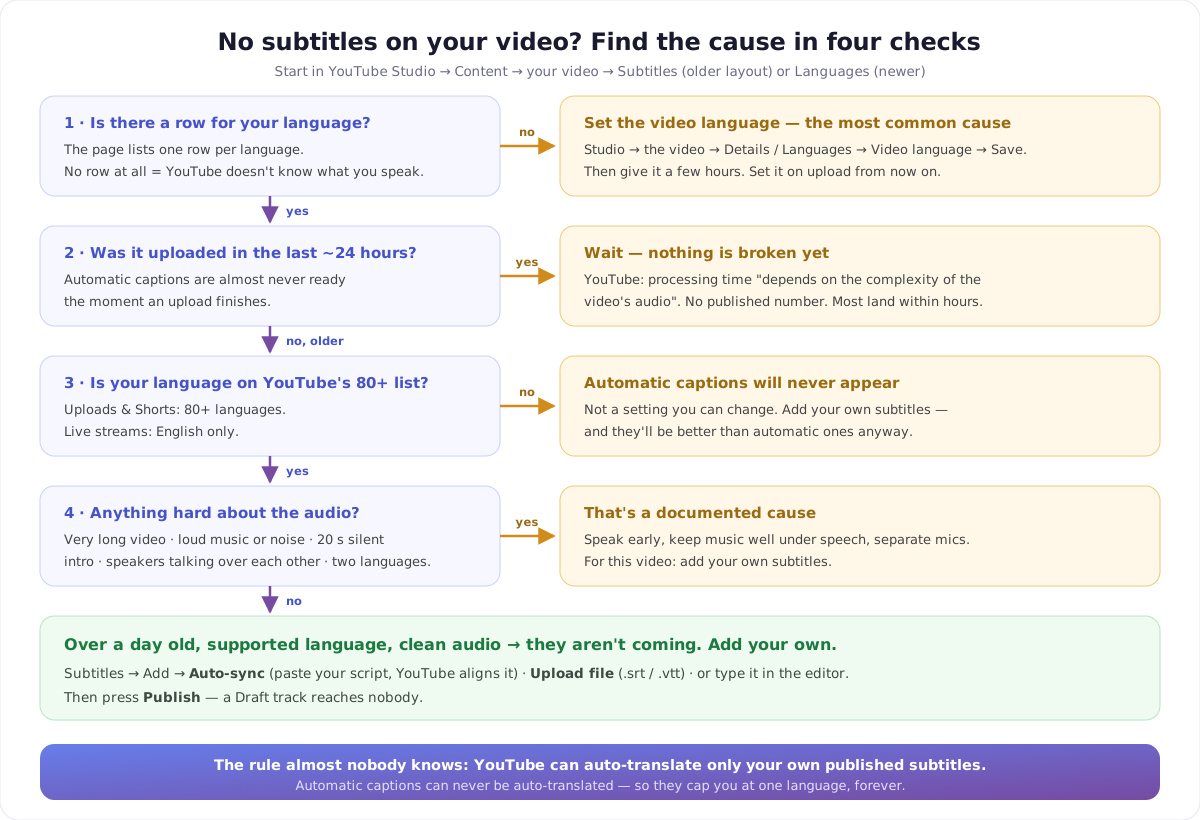
One important thing about this screen: automatic captions are not listed the way your own subtitles are. YouTube generates them for viewers, but they are YouTube's, not yours. That distinction becomes the whole story further down.
The six reasons YouTube documents
These are, word for word, the causes on YouTube's automatic captioning help page (checked August 2026). Take them in this order — the first two explain most cases.
1. It's still processing
"The captions aren't available yet due to processing complex audio in the video."
Automatic captions are almost never ready the moment an upload finishes. YouTube says processing time "depends on the complexity of the video's audio" and gives no number.
How to tell: the video is less than a day old, everything else looks fine. What to do: wait. In practice most videos get captions within a few hours; a long, noisy, or musical video can take a day or more. If it's been more than 24 hours, stop waiting and read on — it isn't coming.
2. Your language isn't supported
YouTube generates automatic captions in over 80 languages for uploads and Shorts — Arabic, Bengali, Chinese, Dutch, English, Filipino, French, German, Hindi, Indonesian, Italian, Japanese, Korean, Polish, Portuguese, Russian, Spanish, Swahili, Thai, Turkish, Ukrainian, Vietnamese and many more. It's a long list, but it isn't every language.
For live streams, the rule is much narrower: automatic captions are English only.
How to tell: you speak a smaller language, or you're live. What to do: nothing will change this. Skip to the fix that always works further down — your own subtitles.
3. The video is too long
"The video is too long."
YouTube doesn't publish the threshold, and it isn't a hard cliff — it interacts with audio complexity. Multi-hour streams, VOD uploads of long streams and full DJ sets are the usual victims.
How to tell: your video is very long and nothing else on this list applies. What to do: upload your own subtitle file (below). For long content, a transcript-based tool will do this faster than typing.
4. Poor sound quality, or speech YouTube can't recognise
"The video has poor sound quality or YouTube doesn't recognise the speech."
Heavy background music, wind, room echo, a distant camera mic, very strong accents, whispering, and heavily processed vocals all push a video into this bucket. Music videos in particular often get no captions at all — sung vocals over an instrumental are not what a speech recogniser is built for.
How to tell: listen back on laptop speakers. If you have to lean in, so does the recogniser. What to do: for this video, upload your own subtitles. For the next one: record voice on a separate track, keep music at least 12–15 dB below speech, and cut room noise.
5. A long silence at the start
"There's a long period of silence at the beginning of the video."
A cinematic 20-second cold open with music and no speech can be enough for YouTube to give up before your first word.
How to tell: your intro is long and speech-free. What to do: get a spoken line in early — even a one-sentence hook before the branded intro. It helps retention as well as captions.
6. Overlapping speakers, or several languages at once
"There are multiple speakers whose speech overlaps or multiple languages at the same time."
Panel shows, interviews recorded on one mic, podcasts where people talk over each other, and any video that code-switches between two languages mid-sentence.
How to tell: you have two or more people on one audio track, or you switch languages while speaking. What to do: edit out the worst crosstalk if you can, and otherwise plan to supply your own captions. For a regular multi-person format, recording each speaker on a separate track and mixing with a little separation helps more than anything else.
The three reasons YouTube doesn't list
These are the ones creators actually hit. None of them appear on the help page.
7. The video's language is not set (or is set wrong)
This is the single most common false alarm. If YouTube doesn't know what language your video is in, the Subtitles page has nothing to hang a row on — and automatic captions have no language to be generated in.
How to tell: the Subtitles/Languages page shows no language row at all, or shows the wrong language. What to do: Studio → Content → the video → Show more / Details → Video language (in the newer layout: the Languages page itself) → pick the language actually spoken → Save. Then wait a few hours. This alone fixes a large share of "no captions" reports.
While you're there: set it correctly on upload from now on. It costs one dropdown and it decides whether your video is captioned at all.
8. Your video has multiple audio tracks
If a video carries more than one audio track (YouTube's multi-language audio feature), the automatic captions follow the default track. The other tracks don't get their own automatic captions.
How to tell: you use multi-language audio and captions only exist for one language. What to do: supply subtitle files for the additional languages yourself.
9. You're looking at the viewer side, and viewers see nothing
Sometimes captions genuinely exist but aren't reaching the player: the CC button is missing on a phone, or a viewer has captions switched off in their account. Before you troubleshoot the upload, open the video in a private window on a desktop and check the ⚙ → Subtitles/CC menu there.
The fix that always works: give YouTube your own subtitles
Every branch above ends in the same place. Automatic captions are a convenience, not a guarantee — and (this is the important part) they are not yours. Your own subtitles always work, in any language, on any length, regardless of audio quality.
Three ways to make them, in order of effort:
- Auto-sync from a transcript. Studio → the video → Subtitles/Languages → Add → Auto-sync: paste the whole script as plain text, YouTube aligns it to the audio. If you write from a script, this is a two-minute job and the accuracy is perfect, because the words are yours.
- Upload a file. Any
.srtor.vtt— from an editing tool, a transcription service, or a whisper-style model. Studio → Add → Upload file. - Type it in. The built-in editor plays the video and lets you type with timings. Fine for a short video, painful past ten minutes.
Then the step people forget: press Publish. A draft track shows as Draft and reaches nobody.
The rule nobody tells you: automatic captions can never be auto-translated
Here's why this matters far more than whether YouTube got around to captioning your video.
YouTube has a built-in Auto-translate for subtitles: with one click a viewer in Brazil can read your subtitles in Portuguese. But YouTube only offers it on published, creator-owned original subtitles. On automatic captions, Auto-translate is unavailable — that's YouTube's rule, not a bug.
So the two states look almost identical to you and are completely different in reach:
| Automatic captions | Your published subtitles | |
|---|---|---|
| Viewers in your language | Yes | Yes |
| Accuracy | YouTube's guess | Exactly what you wrote |
| Can be auto-translated into other languages | No | Yes |
| Counts as a caption track you control | No | Yes |
Which means: a creator who waits for automatic captions is capped at one language forever, while a creator who spends ten minutes publishing their own original subtitles has just unlocked every language YouTube supports.
And then: every language, one click
Once your originals are published, YouTube will translate them — one language at a time, through a dialog you have to open, click through and publish, then close and repeat. For 50 languages that's an afternoon.
VidAI's Subtitles button does that loop for you: it opens each language, chooses Add subtitles → Auto-translate → Publish, waits for YouTube to confirm and moves on. Honest about what that is:
- VidAI does not translate the subtitles. YouTube's own Auto-translate does. VidAI automates the clicking.
- Because of that, it costs 0 credits — on every plan, for any number of languages.
- It cannot make YouTube generate captions for you. Nothing can. What it can do is tell you the truth about your video's state in under a second — published, draft, auto-generated only, or nothing at all — and walk you through publishing your originals for free if that's what's missing.
The full walkthrough is here: Translate YouTube subtitles into 90+ languages automatically — and for free, and the locked-Auto-translate case has its own post: Publish your original subtitles first.
The one-page checklist
- Studio → Content → video → Subtitles / Languages.
- No language row? Set the video language. Save, wait a few hours.
- Row empty and the upload is under a day old? Wait.
- Over a day, and your language is on YouTube's list, and the audio is clean? It isn't coming — add your own.
- Made your own? Publish them. Draft ≠ live.
- Want other languages? Auto-translate only works from your published originals — then run them all at once.
FAQ
How long should I wait for automatic captions? Up to a day for a normal video. YouTube only says processing depends on the audio's complexity. Past 24 hours, treat it as "not coming" and add your own.
Why does my video have no CC button at all? Either no captions exist (everything above), or the video's language was never set so YouTube had nothing to caption. Check the language setting first.
Can I force YouTube to generate automatic captions? No. There's no button, no re-trigger. The only thing under your control is the input: set the correct video language, and give it clean, speech-forward audio.
Do music videos get automatic captions? Usually not. Sung vocals over an instrumental are exactly the "poor sound quality or unrecognised speech" case. Upload your own lyrics as a subtitle file instead — it's also the only way to get them translated.
My live stream had no captions. Why? Automatic captions for live streams are English only. Everything else needs your own captions after the stream is over.
Do automatic captions help SEO? They give YouTube text to work with, but they're a machine transcript of unknown accuracy and they can't be translated. Published original subtitles are better on both counts.
I have automatic captions — can I just translate those? No. YouTube's Auto-translate is unavailable on automatic captions. Publish your own original subtitles first; then every language opens up.
Want the multilingual half done in one click? Install VidAI — it checks your subtitle state on the Studio page, helps you publish the originals for free, and then runs YouTube's Auto-translate across every language you've picked.