Is This YouTube Video Monetized? Check Any Video or Short in One Click (and See Its Hidden Tags)

Is this YouTube video monetized? VidAI answers it on any watch page or Short with a green or red badge, reading YouTube's public licensedContent signal — and its Info button also shows the video's hidden tags, stats, category and an SEO score. Here's exactly how it works, what the badge can and cannot tell you, and how to use it for research.
🇺🇦 Читати українською: Чи монетизоване це YouTube-відео? Перевірка одним кліком
"Is this video monetized?" is one of the most-asked questions about YouTube — by creators sizing up a niche, by people weighing whether to buy or sponsor a channel, by students of the platform, and by anyone curious whether a viral video actually pays its maker. YouTube doesn't answer it. There's no public monetization switch on the watch page, and the ads you see are no proof (more on that below).
VidAI's Video Info feature gives you the closest thing to an answer that exists, right where you're watching: a Monetized / Not monetized badge on every video and Short, plus an Info panel with the things YouTube hides — the video's tags, its category, full stats, and an SEO score. This guide explains every piece, including the honest limits.
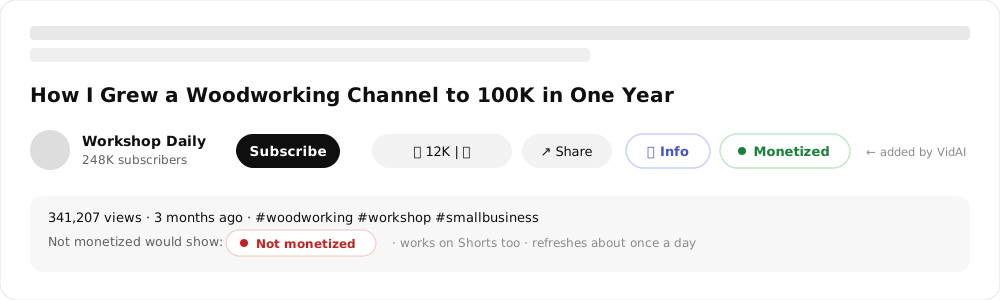
Where it appears
Most VidAI tools live in YouTube Studio. This one lives on regular youtube.com. Open any video — yours, a competitor's, anything — and VidAI adds two buttons to the row under the player, next to Subscribe / Like / Share:
- 👁 Info — opens the Video Info panel.
- ● Monetized or ● Not monetized — the badge, green or red.
It works on normal videos and on Shorts, and it appears automatically — nothing to click for the badge. (Both buttons can be switched off in VidAI's settings if you prefer a clean page.)
How VidAI knows — the actual mechanism
No guessing and no scraping of the player. VidAI asks YouTube's official Data API for the video's public metadata and reads one specific field: licensedContent. YouTube sets it to true when the video was uploaded to a channel linked to a YouTube partner (a YouTube Partner Program channel or a content partner) and that partner has claimed the video — which is what monetization is, mechanically. It is the strongest monetization signal YouTube makes public, and it's what VidAI's badge reflects:
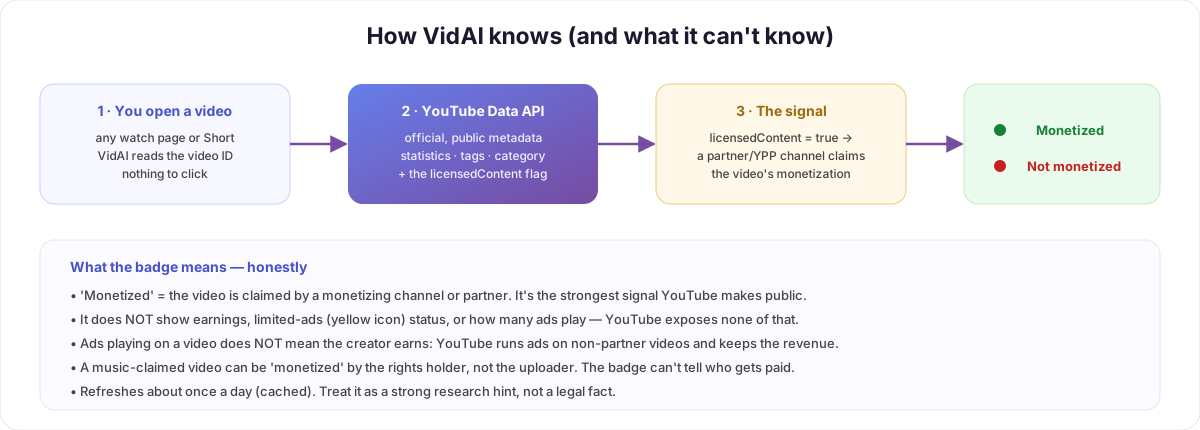
The result is cached for about half a day, so a freshly monetized channel's videos flip to green within a day without you doing anything.
What the badge means — and what it can't tell you
This is the part most "monetization checker" tools skip, and it matters:
| The badge can tell you | The badge cannot tell you |
|---|---|
| Whether a monetizing channel or partner has claimed this video | How much the video earns — YouTube exposes no revenue data to anyone |
| Whether a niche's successful channels are in the Partner Program | Whether the video has limited ads (the yellow icon creators see in Studio) |
| Whether your own videos are flagged as monetized after YPP approval | Who gets paid — a video with a music claim may be monetized by the rights holder, not the uploader |
| A quick, consistent research signal across hundreds of videos | Anything about Shorts Fund / channel memberships / sponsorships — those aren't in the flag |
Two misconceptions worth killing:
- "I saw ads, so it's monetized." Not necessarily. YouTube runs ads on many videos from channels outside the Partner Program and keeps that revenue itself. Ads playing tells you nothing about the creator's earnings; the
licensedContentflag does. - "No ads, so it isn't." Ad-free playback can mean an ad blocker, YouTube Premium, a region without inventory, or simply no ad that moment. Again — the flag is the signal, not the ads.
So treat the badge as what it is: a strong, public, consistent research signal, not a legal statement about anyone's income.
The Info panel: the things YouTube hides
Click 👁 Info and you get the full public record of the video in one panel:
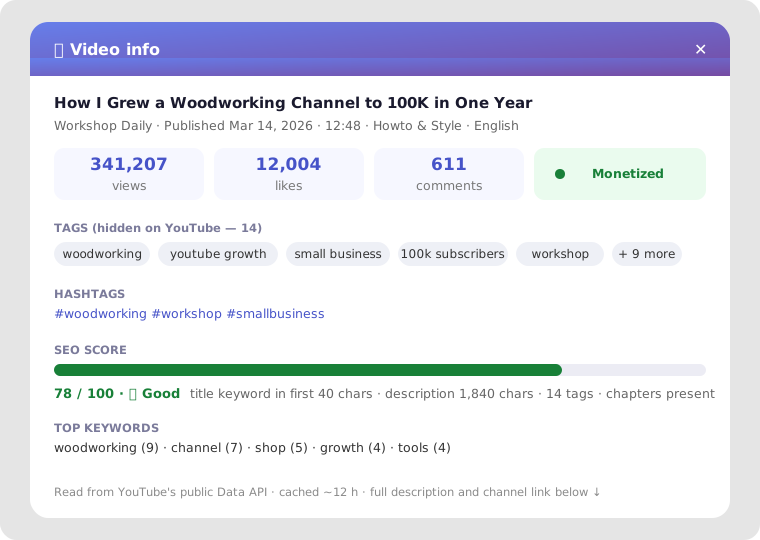
- Tags — YouTube stopped showing tags publicly in 2012, but they're still in the metadata. VidAI lists every one. This alone answers the other question people ask constantly: "how do I see a YouTube video's tags?"
- Hashtags — extracted from the title, description and tags.
- Stats — views, likes, comments, duration, publish date, category, language, channel.
- SEO score — VidAI's analyzer grades the video's metadata (title keyword placement, description length, tag count, chapters, and more) into a 0–100 score with a label and the reasons behind it, plus the top keywords the metadata repeats. It's the same scoring VidAI uses for your own videos in Studio — pointed at anyone's video.
- Full description and a link to the channel.
How creators actually use this
- Niche research. Scan the top 20 videos for a topic. If most are from monetized channels, the niche sustains creators; if almost none are, ask why before committing months to it.
- Competitor tags. Open the three videos outranking you, read their tags and top keywords, and compare with yours — then generate better ones.
- Due diligence. Buying a channel, sponsoring a creator, licensing a clip — the badge is a 1-second sanity check before the conversation.
- Checking your own. Just got into the Partner Program? Open your videos on youtube.com and watch the badges turn green over the next day.
- Learning what works. A video with 2M views, 14 tags, a 78 SEO score and a monetized badge teaches more than any course slide.
FAQ
Is this allowed? Yes. VidAI reads the same public metadata any developer can request from YouTube's Data API. Nothing private is accessed; nothing on the video is changed.
Why does my monetized video show "Not monetized"? Two common reasons: the cache (wait a day), or the video genuinely isn't claimed yet — newly approved channels can take time for the flag to propagate. If it persists, check the video's monetization status in Studio.
Can VidAI show how much a video makes? No — and neither can any tool. YouTube publishes no earnings data. Anything claiming to is estimating from views × assumed rates.
Does it work on Shorts? Yes, the badge and the Info button both appear on Shorts.
Does it show the monetization of private or unlisted videos? Only what's public: unlisted videos work if you have the link; private videos expose no metadata.
See it on the next video you watch: Install VidAI from the Chrome Web Store — the badge appears the moment you open youtube.com.