How to Translate YouTube Subtitles into 90+ Languages Automatically — Free, in One Click (Step by Step)

Translate YouTube subtitles into 90+ languages automatically — and for free: VidAI's Subtitles button runs YouTube's own Auto-translate for every language in one click. This guide walks through every step on both Studio layouts, what the on-screen checks mean, how long it takes, and exactly what costs credits (the subtitles don't).
🇺🇦 Читати українською: Автоматичний переклад субтитрів YouTube — безкоштовно, одним кліком
YouTube can already translate your subtitles into any language — it just makes you do it one language at a time: open the language, click Add under Subtitles, click Auto-translate, click Publish, close, repeat. For 50 languages that's a few hundred clicks and an afternoon you don't have. So most creators never do it, and viewers who don't speak your language watch without subtitles (or don't watch at all).
VidAI's Subtitles button does the whole loop for you — every language, one click — and it's free, because the translation itself is done by YouTube, not by VidAI. This post is the complete manual: the setup, what you'll see at every step, the two Studio layouts and the one rule that differs between them, how long it takes, and what to do when something is skipped.
This is part 1 of a three-part series: 1. This guide — the step-by-step how-to. 2. What "browser automation" is, and why the Studio tab must stay visible 3. Publish your original subtitles first — why YouTube locks Auto-translate, and how VidAI fixes it for you
What VidAI does — and, just as important, what it doesn't
For titles and descriptions, VidAI translates the text itself (its own AI and translation engines) and writes the result into your video — that's what credits pay for. Full guide here.
For subtitles, VidAI translates nothing. YouTube has a built-in Auto-translate for subtitles; the only problem with it is the clicking. VidAI automates that clicking: it opens each language, chooses Add subtitles → Auto-translate → Publish, waits for YouTube to confirm, and moves to the next language. Three honest consequences:
- It costs 0 credits. No VidAI translation engine runs, so nothing is billed — on any plan.
- The quality is YouTube's. The subtitles are exactly what you'd get by clicking Auto-translate yourself.
- It runs in your browser, on the Studio page. That's why it's called browser automation and why the tab must stay in front while it works (part 2 explains the mechanics).
Before you start — a 60-second checklist
- VidAI installed — Chrome Web Store, sign in with your Google account once. No channel authorization is needed for subtitles — this flow works on any channel you're logged into.
- The video has published, user-owned original subtitles. This is YouTube's rule, not ours: "Auto-translate is unavailable for auto-generated captions." Auto-generated captions exist on most videos, but they don't count until they're published as yours. Don't worry about checking — VidAI checks for you (step 3 below), and part 3 covers every case.
- YouTube has finished processing the video. While it's still generating the original captions, the Subtitles button is greyed out with the tooltip "Please wait — YouTube is still processing the original subtitles." Come back in a few minutes.
- Your languages are chosen. The languages come from your VidAI settings (⚙ on the VidAI toolbar, or vidai.help/selected_languages) — the same list your title and description translations use. There's no cap; pick 10 or 90.
Step by step
1. Open the video's languages page in YouTube Studio
YouTube Studio → Content → click the video → in the left menu, Subtitles (older layout) or Languages (newer layout). Both open the same translations page, and VidAI's purple toolbar appears at the top of it:
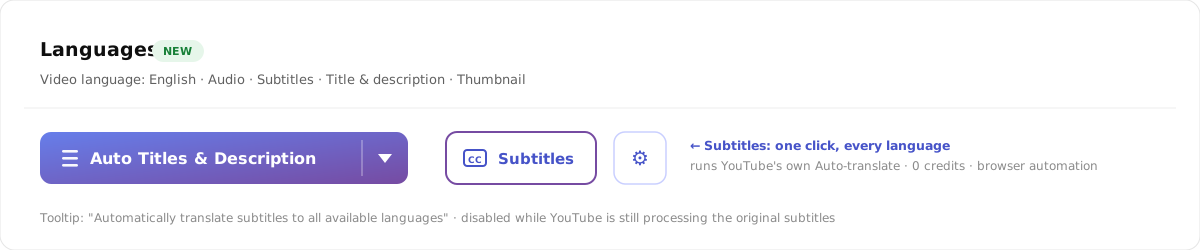
Notice the small LEGACY or NEW badge — it tells you which of YouTube's two layouts you're on. You'll need it in the next section.
2. Click Subtitles
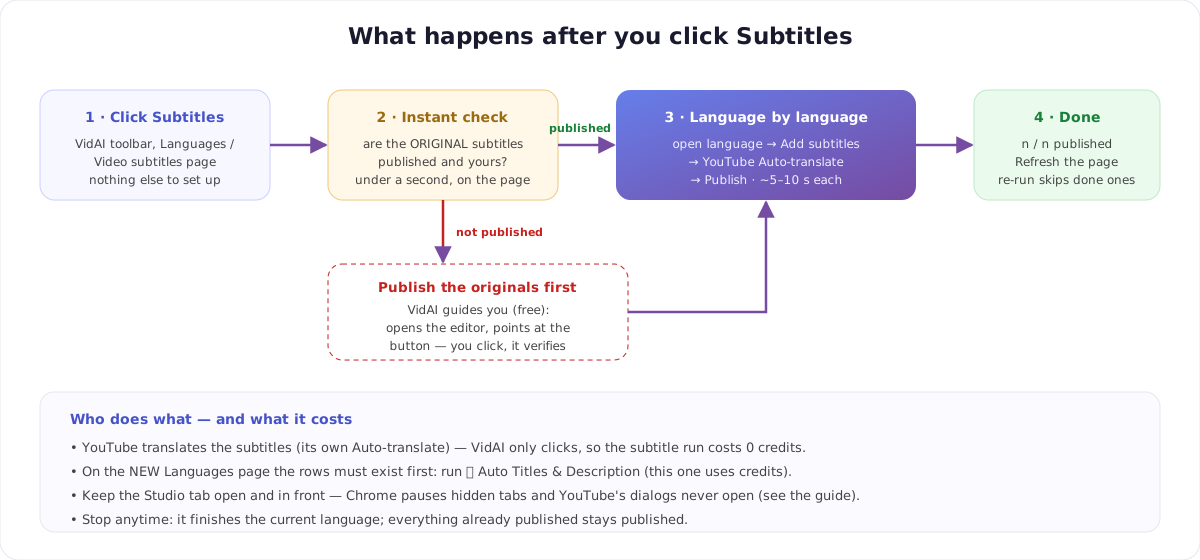
That's the click. Everything below happens on its own — one card opens and stays with you from this moment until the last language is published, so you always know what's happening and what to do next.
3. The instant check (under a second)
First the card shows "Checking your subtitles — making sure auto-translate is unlocked…". VidAI reads the status of your original subtitles right on the page — nothing opens, nothing is clicked on YouTube yet. Three outcomes:
- Published and yours → the card flips to "Subtitles are published — starting the subtitle translation…" and the run begins. (VidAI remembers this for 10 minutes, so a re-run skips the question entirely.)
- Auto-generated only, or a draft → "Are your original subtitles published?" with a green ✅ Yes, they're published — proceed if you know better, and two free ways to fix it: 🧭 Help me check & publish (VidAI opens the editor and points at the exact button; you click) or 🤖 Do it for me (beta, fully automatic). Part 3 shows both.
- No subtitles at all → "YouTube hasn't generated subtitles for this video, so there's nothing to publish or translate yet." Add subtitles (upload or type), publish, come back.
4. The run — what you'll see
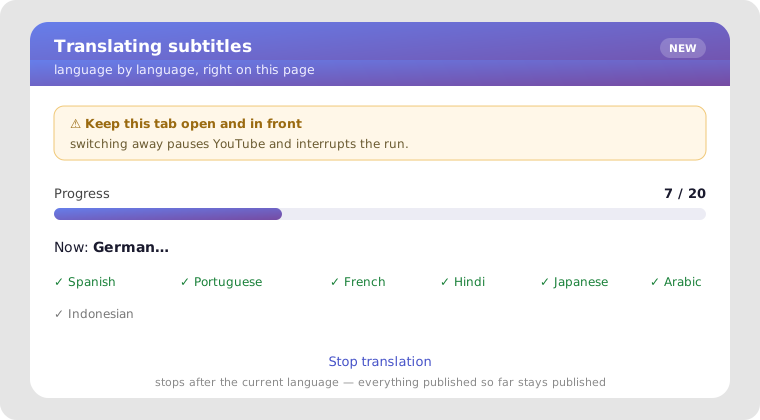
For each language VidAI opens the language's dialog, clicks Add under Subtitles, picks Auto-translate, waits for YouTube's editor to confirm, clicks Publish, and gives YouTube two seconds to settle before the next one. You'll see the counter advance (7 / 20), the current language (Now: German…), and a running list of completed ones.
Two things to know while it runs:
- Keep the Studio tab open and in front. Chrome pauses hidden tabs, and YouTube's dialogs never open in a paused tab — the banner in the card says exactly this. The practical trick: drag the Studio tab into its own window, keep it visible next to whatever else you're doing, and the run finishes on its own. Part 2 explains why and what counts as "hidden".
- Stop anytime. The quiet Stop translation link finishes the current language, then stops. Everything already published stays published; run Subtitles again later and it continues with the rest.
5. Done — and the end states explained
- "All subtitles translated! — 20 languages published" → click ↻ Refresh page; the Subtitles column now shows Published for every language.
- "Finished — with a few skips" → ✅ 18 languages translated · ⚠️ 2 skipped. YouTube didn't offer Auto-translate for the skipped ones. Common reasons: a regional variant of your own language (English → English (UK) can't be "translated"), or a language YouTube's auto-translate doesn't support yet. Everything else is saved.
- "Auto-translate is locked" → YouTube kept it disabled for every language, which almost always means the originals aren't published after all. The card offers the same free guided fix right there; afterwards, refresh and click Subtitles again — it goes straight to translating.
- "Translation stopped" → you clicked Stop; it tells you how many were published before stopping.
6. Verify like a viewer
Open the video on youtube.com, click the CC button → ⚙ → Subtitles → your viewers now see your languages listed — real subtitle tracks, selectable by anyone, not the on-the-fly auto-translate that only appears for some viewers.
The two Studio layouts — and the one rule that differs
YouTube is showing creators two different translations pages right now. Which one you get is YouTube's decision (it's tied to your channel's dubbing settings); VidAI supports both and labels them so you always know which you're on.
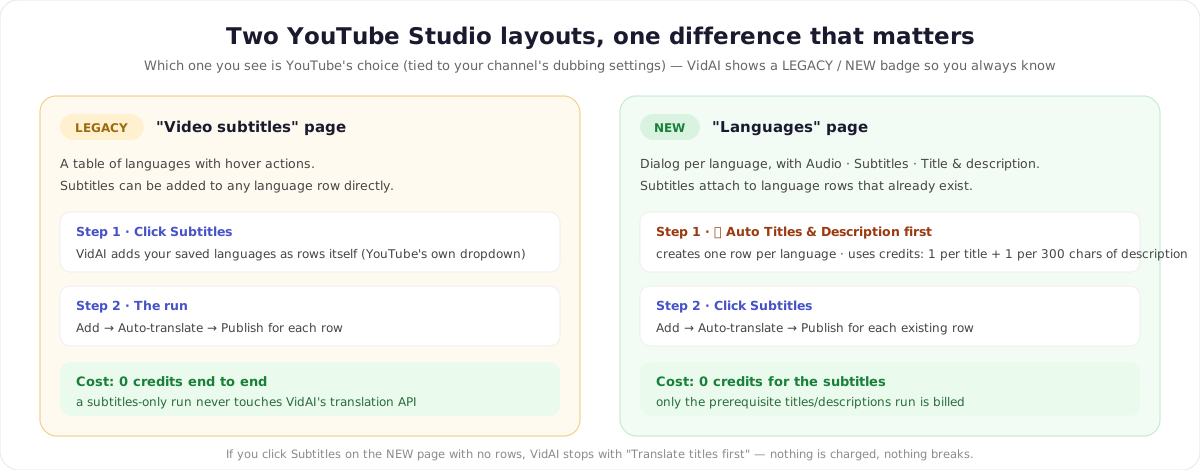
LEGACY ("Video subtitles"). A table of languages. If your saved languages aren't in the table yet, VidAI adds them itself using YouTube's own language picker — then runs. A subtitles-only run here costs nothing at all.
NEW ("Languages"). Each language is a row with its own dialog (Audio · Subtitles · Title & description). Subtitle translations attach to those rows — and the rows are created by translating the title and description for each language. So on the NEW page the order is:
- Run 🌐 Auto Titles & Description first (pick Fast API mode or Browser mode — both explained here). This run uses credits: 1 credit per title, plus 1 per 300 characters of description, per language. Example: a 900-character description → 4 credits per language → 80 credits for 20 languages; title-only → 20 credits. Regional variants (e.g. Spanish (Mexico) alongside Spanish) are copied free.
- Then click Subtitles — it translates subtitles for every row, for 0 credits.
If you click Subtitles on the NEW page before the rows exist, VidAI stops with "Translate titles first — titles & descriptions build the language table" and explains the two steps. Nothing is charged.
Is the NEW-page rule a VidAI limitation? No — it's how YouTube's new page is built: a subtitle track needs a language row to live in, and the row is the title/description translation. Most creators want translated titles anyway (that's what gets you found in other languages), so in practice the order is: titles & descriptions once, subtitles on top.
How long does it take?
Roughly 5–10 seconds per language — most of it is waiting for YouTube's editor to open and confirm. So 20 languages is about 2–3 minutes, 50 languages under 10. Start it, move the Studio window aside, answer a few emails, come back to a finished list.
What it costs — the complete table
| Action | Credits |
|---|---|
| Subtitles run (any number of languages, either layout) | 0 |
| The instant check, guided publish of your originals, "Do it for me" | 0 |
| 🌐 Auto Titles & Description (required first on the NEW page only) | 1 per title + 1 per 300 description characters, per language |
| Re-running Subtitles to finish skipped or stopped languages | 0 |
FAQ
Does VidAI translate the subtitles itself? No. YouTube's Auto-translate does; VidAI automates the clicks. That's why it's free and why the quality matches what you'd get by hand.
Do I need to authorize my channel? No. The Subtitles flow works on the Studio page you're logged into; channel authorization is only needed for Fast API mode of the titles & descriptions flow.
Can I close the tab and let it run? Not for subtitles — it runs in that tab. Keep it open and visible (its own window is easiest). Titles & descriptions in Fast API mode run on VidAI's servers and can be left.
Can I run it twice? Yes. Languages that already have subtitles are skipped automatically, so re-running after a stop or a skip only does what's left.
What if YouTube changes its page? Automating someone else's page is sensitive to their changes; if a run stalls, refresh and re-run — nothing already published is affected. VidAI can adjust its page selectors remotely without a new extension release.
Does it work on Shorts? Yes — Shorts have the same Languages page in Studio.
Will viewers see them as proper subtitles? Yes, as published tracks listed under CC → Subtitles, for every viewer.
Ready? Install VidAI, open a video's Languages page, click Subtitles.
Keep reading
- YouTube didn't generate subtitles for your video — every reason — what to do when there are no original captions to translate in the first place.
- Which languages should you translate into? — reach vs. revenue, with both preset lists.