What “Browser Automation” Means in VidAI — and Why Your YouTube Studio Tab Must Stay Visible

Browser automation in VidAI, explained plainly: the extension clicks YouTube Studio's own buttons inside your logged-in tab — no passwords, no API keys, nothing leaves your browser. Here's what it does step by step, why Chrome pauses hidden tabs (and therefore why the Studio tab must stay visible), and the one-minute setup that lets you keep working while it runs.
🇺🇦 Читати українською: Що таке автоматизація браузера у VidAI — і чому вкладка Studio має бути видимою
Two of VidAI's features carry a warning you won't see anywhere else in the extension: "Keep this tab open and in front — switching away pauses YouTube and interrupts the run." Users ask about it constantly — is it a bug, is it dangerous, can I really not check my email? This post answers all of it. Part 2 of the subtitles series (part 1: the how-to · part 3: publishing your originals).
Two ways VidAI can change your video
VidAI publishes translations to your channel in one of two ways, and the difference decides everything about tabs:
| Fast API mode | Browser automation | |
|---|---|---|
| Who does the work | VidAI's servers, through YouTube's official API | Your browser, on the Studio page you have open |
| Needs | A one-time channel authorization (Google's consent screen) | Nothing — you're already logged into Studio |
| Can you close the tab? | Yes — the job runs on the server, you get a notification | No — it runs in the tab and needs it visible |
| Used for | Titles & descriptions (recommended mode) | Subtitles (always), titles & descriptions in Browser mode, publishing your original captions |
| Speed | A few minutes for 20–30 languages, in the background | ~5–10 s per language, in front of you |
Why can't subtitles use the fast path? Because the free subtitle translation is YouTube's own Auto-translate, and it exists only as a button in Studio — there's no API for it. A server-side version would have to translate the text itself, which is exactly the paid path. So subtitles are free because they're browser-automated. The two facts are the same fact.
What browser automation literally does
Think of a very fast assistant sitting at your keyboard who only knows one routine. For subtitles, per language, VidAI:
- clicks the language's name in the Languages table (opens YouTube's dialog),
- clicks Add under Subtitles,
- clicks Auto-translate,
- waits for YouTube's editor to load and enable Publish, clicks it,
- waits for the editor to close, pauses two seconds, and moves to the next language.
That's the entire repertoire. Some things it pointedly does not do:
- It never asks for, sees, or stores your Google password. It works because you are logged in — the same way the page works when you click.
- It makes no API calls and sends nothing to VidAI's servers during a subtitle run. Your subtitles never pass through VidAI.
- It touches only the dialog it opened. It can't wander into other tabs, settings, or videos.
- Everything it does is reversible in Studio the normal way (unpublish or delete a subtitle track).
You can watch it work, which is the best way to trust it: the dialogs open and close on screen, exactly as if you were clicking.
Why the tab must stay visible — the real mechanism
This is not a VidAI rule; it's how Chrome treats tabs you aren't looking at. To save battery and CPU, Chrome:
- pauses
requestAnimationFramecompletely in hidden tabs — the mechanism web apps use to animate and draw; - slows timers to once per second, and after about five minutes in the background, to once per minute.
YouTube Studio is a web app whose dialogs animate open using exactly that paused mechanism. In a hidden tab, the language dialog VidAI just clicked never actually appears. VidAI waits a few seconds for it, gives up on that language, and moves on — so you come back to "18 translated, 2 skipped", or to a run that seems frozen on one language. Nothing is broken; YouTube simply never drew the dialog.
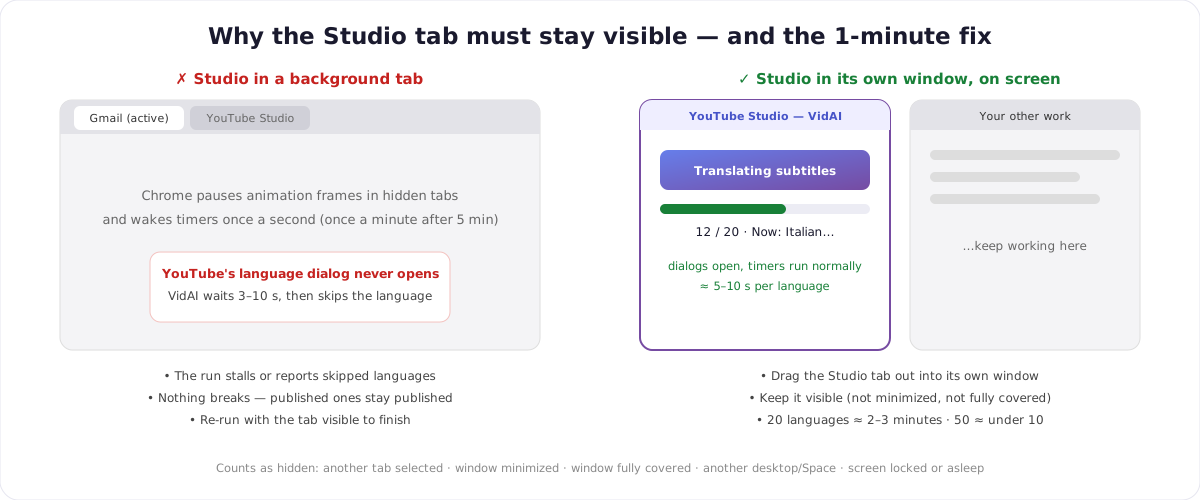
So "in front" means visible on your screen, and these all count as hidden:
- another tab is selected in the same window,
- the Studio window is minimized,
- the Studio window is completely covered by another window (Chrome tracks this),
- Studio is on another virtual desktop / Space,
- the screen is locked or has gone to sleep.
The one-minute setup: give Studio its own window
You don't have to stare at it. You have to keep it on screen.
- Drag the Studio tab out of the tab strip — it becomes its own window. (Or right-click the tab → Move tab to new window.)
- Resize it to a third or half of your screen and put it at the side.
- Work in another window next to it: email, your editor, anything — as long as the Studio window stays at least partly visible and isn't minimized.
- If you expect to be away for a while, make sure the screen won't go to sleep for the next few minutes.
That's it. Twenty languages finish in two to three minutes; fifty in under ten. When you come back, the card says "All subtitles translated!" and you click Refresh.
On a laptop with one small screen, the simplest version is: start the run, leave the window in front, make a coffee. It's a few minutes, not an afternoon.
What happens if you slip
Say you switched tabs anyway. Three reassurances:
- Nothing breaks. Languages that were published stay published — each one is saved by YouTube the moment its Publish was clicked.
- The run tells the truth. You'll see "Finished — with a few skips" (with the count) rather than a fake "all done", or a run that's waiting on the current language.
- Re-running is free and safe. Click Subtitles again with the window visible; languages that already have subtitles are skipped automatically, and it finishes the rest.
The same applies to the Stop translation link — it stops after the current language, and the next run continues from there.
Which VidAI features need a visible tab
| Feature | Runs where | Tab must stay visible? |
|---|---|---|
| Subtitles (auto-translate every language) | Your Studio tab | Yes |
| "Help me check & publish" / "Do it for me" (publishing your original captions) | A Studio tab VidAI opens in front for that purpose, closed by itself after | Yes, for the few seconds it takes |
| Titles & descriptions — Browser mode | Your Studio tab | Yes |
| Titles & descriptions — Fast API mode | VidAI's servers | No — close the tab, you'll be notified |
| Everything else (AI titles, tags, descriptions, comment replies, Video Info…) | Studio page / VidAI's API | No special handling |
Is this safe?
- Your account: VidAI never handles credentials. Browser automation uses the session you already have, like any extension button that acts on a page.
- Your data: during a subtitle run, nothing is sent anywhere — the whole loop is clicks on YouTube's page.
- Control: the card shows every language as it happens, and Stop translation is one click away. You can also just close the window — the current language finishes or is skipped; nothing half-written is left behind.
- Reversibility: every subtitle track VidAI publishes is an ordinary track in Studio; unpublish or delete it there anytime.
FAQ
Can it run in a background tab if I just make the timeouts longer? No — with animation frames paused the dialog never draws, so no amount of waiting helps. Visibility is the only fix, which is why the card says so up front.
Does it work on a second monitor? Yes — a visible window on any monitor is visible.
Can I use my computer for other things? Yes, that's the whole point of the separate window. Just don't cover Studio completely or minimize it.
Why not run subtitles on your servers like Fast API mode? Because the free, YouTube-native Auto-translate only exists in Studio's interface. Server-side subtitle translation would mean VidAI translating the text itself — that's the paid path, and YouTube's is free.
Phone or tablet? No — VidAI is a Chrome desktop extension; Studio's language dialogs don't exist in the mobile app.
See it for yourself: Install VidAI, drag Studio into its own window, click Subtitles, and watch the languages roll in.