Publish Your Original YouTube Subtitles First: Why Auto-translate Is Locked, and How VidAI Checks and Fixes It for You

YouTube keeps subtitle Auto-translate locked until your original subtitles are published — and "published" means yours, not the auto-generated track. This guide explains the three kinds of captions a video can have, how to check yours in two clicks on either Studio layout, how VidAI checks for you automatically, and the free guided fix: VidAI opens the editor and points at the button, you click, it verifies.
🇺🇦 Читати українською: Спершу опублікуйте оригінальні субтитри — чому YouTube блокує Auto-translate і як VidAI це виправляє
If you've ever opened a language in YouTube Studio and found Auto-translate greyed out, this is the post. YouTube's own tooltip says it in eight words — "Auto-translate is unavailable for auto-generated captions" — and that single rule is behind almost every "the subtitles didn't translate" report we get. Part 3 of the subtitles series (part 1: the how-to · part 2: browser automation & the visible tab).
The rule, in one sentence
YouTube will auto-translate subtitles into other languages only from a published original track that belongs to you. Captions YouTube generated by itself don't qualify — even when they show the word Published — because YouTube treats them as its own draft, not your content.
The three kinds of original subtitles
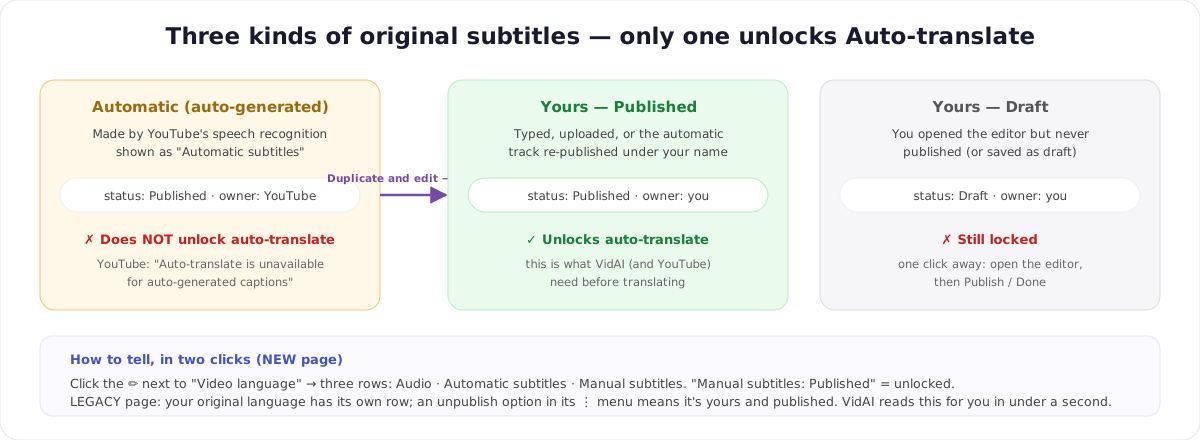
- Automatic. YouTube's speech recognition made them. Studio shows them as Automatic subtitles (NEW layout) or a row ending in (automatic captions) (LEGACY). They can say Published — viewers do see them — but they don't unlock Auto-translate.
- Yours — Published. A track you typed, uploaded, or created from the automatic one (Duplicate and edit → Publish) and published under your name. This is what unlocks Auto-translate for every language.
- Yours — Draft. You opened the editor, maybe fixed some words, but saved as draft or closed without publishing. Still locked; one click from done.
A fourth case exists: none at all — YouTube couldn't generate captions (music-only, unsupported language, still processing). Then there's nothing to publish or translate yet; add subtitles by upload or typing.
Check it yourself — two clicks on either layout
NEW "Languages" page: next to Video language: English at the top, click the ✏️. A small dialog lists three rows — Audio, Automatic subtitles, Manual subtitles. What you want is Manual subtitles: Published. If that row is empty or says Draft, Auto-translate is locked.
LEGACY "Video subtitles" page: your original language has its own row in the table. Open its ⋮ menu: an Unpublish option means the track is yours and published (you never need to click it — its presence is the tell). A row that only offers Download is the automatic track.
Or let VidAI check — it takes under a second
Click Subtitles on VidAI's toolbar and the first thing the card does is read those same statuses from the page — no new tabs, no clicks on YouTube, no waiting. It remembers a confirmed "published" for 10 minutes, so re-runs skip the question.
- Published and yours → the run starts.
- Automatic only, draft, or unsure → the card below.
- Nothing at all → "No subtitles found — this video has none yet, not even auto-generated" with the steps to add some.
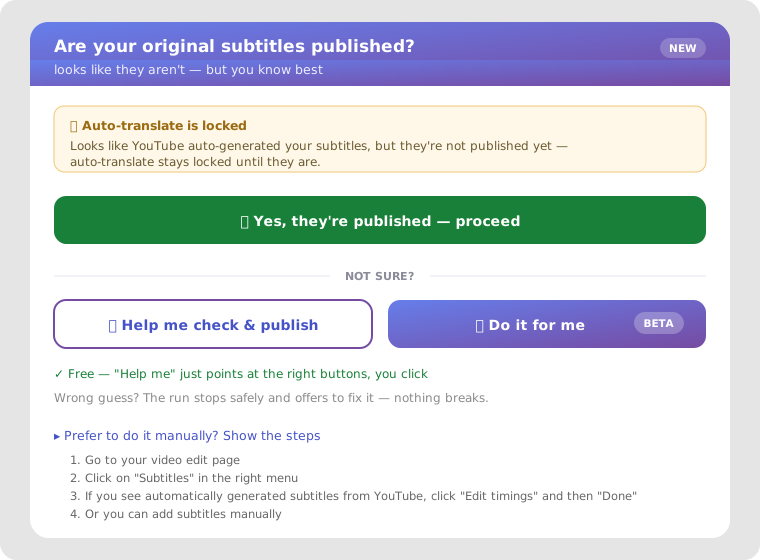
There's also a safety net inside the run: if YouTube keeps Auto-translate disabled for ten languages in a row, VidAI stops with "Auto-translate is locked — your original subtitles are probably not published" and offers the same fixes, instead of ploughing through fifty locked languages.
Publishing your originals — three ways
Option A — 🧭 Help me check & publish (guided, free, recommended)
VidAI opens your video's edit page in a new tab in front of you, opens YouTube's subtitle editor, verifies what's there, and then spotlights the exact button with a purple ring and a "👆 Click this" tag. You make the click — Edit timing, then Publish / Done. VidAI watches for the result, confirms "Subtitles published!", closes the tab and brings you back to the Languages page, where the run continues.
Why guided? Because publishing captions is the one step that changes what your viewers see, and we'd rather you see the transcript before it goes live. It's "we point, you click" — robust to YouTube's layout changes, and impossible to get wrong silently. A Stop guiding link returns you calmly at any moment.
Option B — 🤖 Do it for me (beta)
Same tab, but VidAI performs the clicks itself — useful when you've done this before and just want it done. It has two hard guards: it never publishes an empty transcript (see the trap below), and it never overwrites a non-empty manual track you already had. Still marked beta because it depends on YouTube's editor behaving; if anything looks off it stops with "Couldn't publish automatically — no changes were made to your video" and shows the manual steps.
Option C — by hand (two clicks, once you know where)
Video edit page → Subtitles in the menu → on your original language row, open the automatic track (NEW: ⋮ → Duplicate and edit; LEGACY: the pencil) → click Edit timing if you see it → Publish / Done. Or upload an .srt/.vtt file, or type the captions. Then go back to the Languages page and click Subtitles again.
The traps — and how VidAI protects you
1. Publishing before YouTube finished generating. If you open the caption editor while YouTube is still transcribing, you can publish an empty manual track. It shows Published, Auto-translate unlocks — and every translated language comes out empty. VidAI's Subtitles button stays disabled while YouTube is processing ("Please wait — YouTube is still processing the original subtitles"), and both publish helpers refuse to publish a transcript with no text.
2. "Published" automatic captions. The most common confusion: the automatic row says Published, so the creator proceeds, and every language is locked. The two-click check above, or VidAI's instant check, tells the difference.
3. A draft you forgot. You edited captions weeks ago and saved as draft. Status reads Draft; Auto-translate locked. Publish it.
4. Translations made from a bad source. If your original track was wrong or empty when translations were created, the translated tracks stay wrong after you fix the source — YouTube doesn't regenerate them. Unpublish/delete the bad translations in Studio, fix the original, then run Subtitles again.
5. Regional variants of your own language. English (UK), English (India), Spanish (Mexico)… YouTube won't "translate" English into English, so these always show as skipped. Expected, not an error.
After it's published
Back on the Languages page, click Subtitles. With a confirmed original, the card goes straight to "Translating subtitles" — part 1 shows the whole run — and the languages publish one by one for 0 credits. The 10-minute memory means you won't be asked again for re-runs.
FAQ
Why does YouTube require this at all? Auto-translate needs a trustworthy source text. Speech recognition makes mistakes; by publishing a track as yours, you vouch for it (and get the chance to fix it).
Do I have to correct the automatic captions before publishing? No — publishing them as-is is allowed and is what most creators do. Correcting names and terms first does improve every translation, though.
Does publishing the original change what viewers see? Slightly: they'll see your published track instead of the automatic one — same text unless you edited it.
Does the guided or automatic publish cost credits? No. Both are free, like the subtitle run itself.
My video has two languages (say, English title, Ukrainian audio). The subtitle source is the audio language's track. Make sure that one is published; the title's language doesn't matter here.
Unlock it now: Install VidAI, click Subtitles, and let the card tell you whether you're ready.