Copy for AI: Your Whole YouTube Video's Context on the Clipboard in One Click (What It Copies, How It Reads Your Video, Prompts That Work)

Copy for AI puts your whole YouTube video's context on the clipboard in one click: title, description, tags, stats, a thumbnail link and — on a connected channel — your subtitles, laid out so ChatGPT, Claude or Gemini can work with it immediately. It costs no credits, runs no AI, and sends nothing anywhere except your own clipboard. Here's where the button is, exactly what it copies, and the prompts that make it pay off.
🇺🇦 Читати українською: Copy for AI: увесь контекст відео в буфері одним кліком
Most creators already use an AI assistant alongside YouTube — and most of them feed it by hand: copy the title, copy the description, open the transcript, scroll, copy, paste, explain what the video is about, then ask the question. VidAI has its own AI features for titles, descriptions, tags and chapters — but we also think you should be able to bring your own AI with zero friction. That's what Copy for AI is: not another generator, but the fastest way to hand any assistant everything it needs to know about your video.
Where it is: the Copy chip in the VidAI Hub
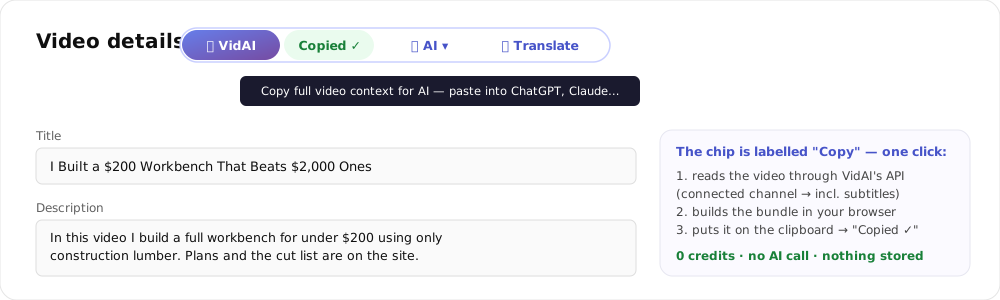
Open any video in YouTube Studio (Content → the video → Details). Next to the page title sits the VidAI Hub: 🎬 VidAI · 📋 Copy · ✨ AI ▾ · 🌐 Translate. The chip is labelled simply Copy — hover it and the tooltip says "Copy full video context for AI — paste into ChatGPT, Claude…". Click it, wait a second while it reads the video, and it turns green: Copied ✓. Switch to your assistant, paste, ask.
That's the entire flow. No modal, no options, no credits.
What lands on your clipboard
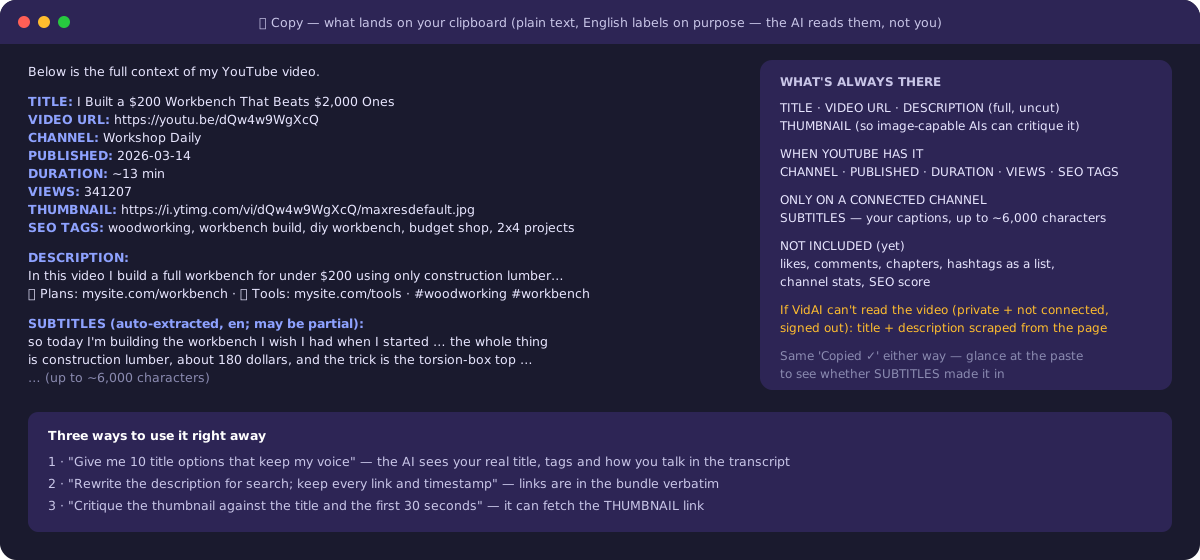
Plain text, with English labels on purpose — the labels are for the AI, not for you, and consistent labels parse best whatever language your video is in:
- A one-line intro: "Below is the full context of my YouTube video."
- TITLE, VIDEO URL, CHANNEL, PUBLISHED (date), DURATION (~minutes), VIEWS, THUMBNAIL (a direct image link — image-capable models can open it and critique the cover), SEO TAGS (all of them, comma-separated).
- DESCRIPTION: the full description, uncut — every link, timestamp and hashtag exactly as written.
- SUBTITLES (auto-extracted, en; may be partial): a transcript excerpt of up to ~6,000 characters from your captions, when the channel is connected to VidAI. Your own published captions are preferred; YouTube's automatic ones are used if that's all there is.
Not included today: likes and comment counts, chapters as a list, channel-level stats, and VidAI's own SEO score. If you want those in the bundle, tell us.
How it reads the video — and what changes when it can't
- Channel connected to VidAI (the one-time Google authorization): the video is read through YouTube's official API on your behalf. This works for public, unlisted, private and scheduled videos, and it's the only path that includes subtitles.
- Channel not connected: the video is read from YouTube's public data — everything except subtitles. Private videos can't be read this way.
- VidAI can't reach the video at all (private and not connected, or you're signed out of VidAI): the chip falls back to what's on the Studio page — title and description — with a note that tags and subtitles weren't available.
One honest caveat: the chip shows the same Copied ✓ in all three cases. Glance at the paste; if the SUBTITLES block is missing and you expected it, connect the channel. Also, the transcript excerpt can occasionally be shorter than 6,000 characters when VidAI has recently read the same captions for another feature — a known quirk we're fixing.
It works on Shorts in Studio too, and on drafts as soon as they've been saved once (save as Private, reopen from Content).
Prompts that earn their keep
The bundle makes prompts short, because the context is already there. Paste it, then add one line:
- Titles in your voice: "Give me 10 title options under 60 characters that keep my tone. Don't promise anything the transcript doesn't deliver." — the model sees your current title, your tags and how you actually talk.
- Description for search, links intact: "Rewrite the description for search intent. Keep every link, timestamp and hashtag exactly as they are."
- Thumbnail vs. promise: "Open the THUMBNAIL link. Does it match the title and the first 30 seconds of the SUBTITLES? What would you change?"
- Hook audit: "Read the first 200 words of the SUBTITLES. Where do I lose a viewer, and what would you say instead?"
- Chapters and a community post: "From the SUBTITLES, propose 6–8 chapters with timestamps, then a 3-sentence community post." (VidAI's own Chapters button does the chapters directly, with YouTube's rules built in.)
- Translation sanity check: paste the bundle, then your translated title/description: "Does the translation preserve the promise of the original? Flag anything that drifted."
Tip: keep one "house prompt" in your assistant's saved prompts and reuse it — the bundle is always the same shape, so the same prompt works for every video.
Three places, one idea
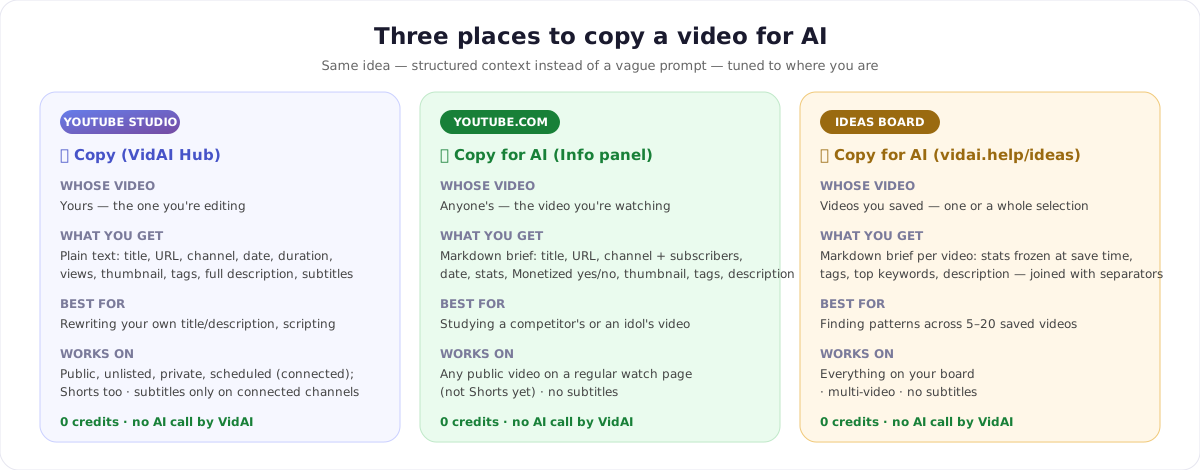
- Your video, in Studio → the Copy chip (this post). Plain text, with subtitles.
- Anyone's video, on youtube.com → ✨ Copy for AI in the Video Info panel. A markdown brief with the public stats, Monetized: yes/no, subscriber count, thumbnail, tags and description — the fastest way to ask "why did this competitor video work?" (the Info panel explained). Regular watch pages only for now, not Shorts.
- Saved videos, on the Ideas board → ✨ Copy for AI for one video or a whole selection, with the stats frozen at save time and the top keywords — built for "what do these ten have in common?" (the Ideas board).
All three are free of credits and none of them calls an AI — VidAI formats, you paste.
What it costs and where your data goes
- 0 credits, on every plan. A signed-in VidAI account is required (the free plan counts).
- No AI is involved on VidAI's side. One request goes from your browser to VidAI's API to read the video; the bundle is assembled in the page and written to your clipboard. VidAI stores nothing — no copy of the bundle, no log entry.
- Nothing is sent to OpenAI, Anthropic or Google by VidAI. You choose the assistant, you paste, and your data is governed by that assistant's terms — so don't paste unreleased scripts into a tool you don't trust.
FAQ
Is this the same as VidAI's AI features? No. The AI Titles, descriptions, tags and chapters features run VidAI's own pipelines (with your channel profile built in) and cost credits. Copy for AI is a free export for the assistant you already use.
Why are the labels in English when my video is in Ukrainian? Deliberately — the labels are read by the model, and consistent English labels are parsed most reliably. Your title, description and subtitles are copied exactly as they are.
Why is my transcript missing? Subtitles are only read on a channel connected to VidAI, and only if the video has captions. Connect the channel in VidAI settings; it's the same authorization used for Fast API translation.
Does it work on someone else's video? Not from Studio — use the ✨ Copy for AI button in VidAI's Video Info panel on youtube.com.
Can I copy just the tags or just the description? Yes — the Video Info panel has per-field copy icons, and the Tags block in Studio has Copy All Tags.
Try it now: Install VidAI, open any video in Studio, click 📋 Copy, paste into your assistant.