YouTube Keywords vs Tags vs Hashtags: What Each One Actually Does, YouTube's Rules, and How VidAI Generates All Three

YouTube keywords, tags and hashtags are three different things: tags live in a hidden field only YouTube reads, hashtags are public clickable text with strict rules (the first three show above your title; more than 15 and YouTube ignores them all), and keywords aren't a field at all — they're the words in your title, description and speech. This guide explains what each does, YouTube's rules for them, and how VidAI generates all three from your actual video.
🇺🇦 Читати українською: Ключові слова, теги й хештеги YouTube — що насправді робить кожне
Ask ten creators what the difference between tags, hashtags and keywords is and you'll get ten answers — most of them "SEO stuff you put somewhere". They're genuinely different: different place, different audience, different rules, and in VidAI a different button for each. Once the difference is clear, the right way to use them is obvious.
Tags — the hidden field
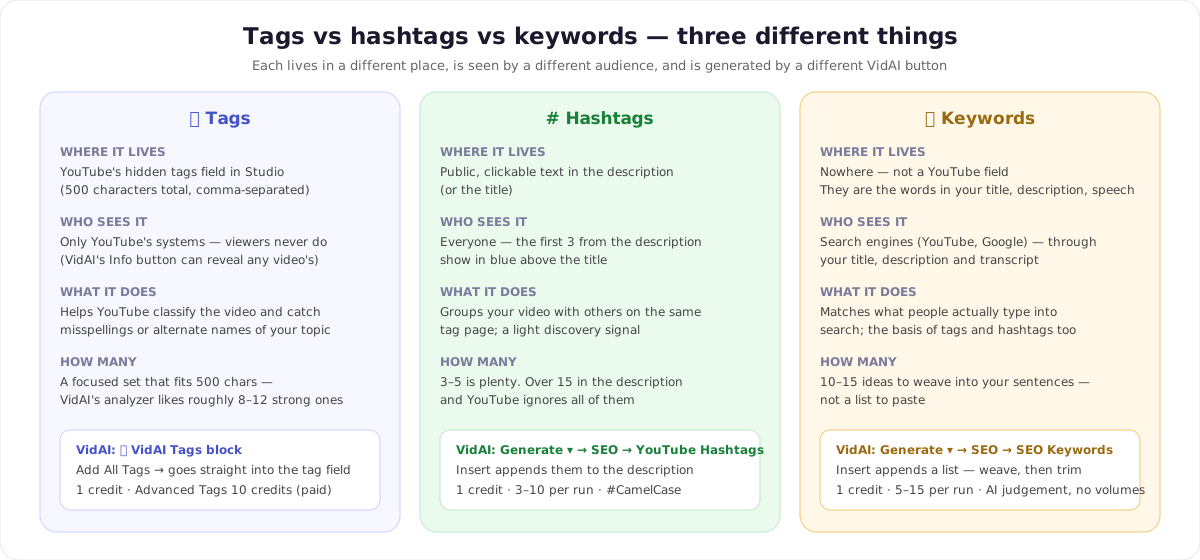
Where: YouTube Studio → video details → Tags. A single box, 500 characters total, comma-separated. Viewers never see it; there's no tag list on the watch page (though VidAI's Info button can reveal any video's tags for research).
What they do: tags help YouTube classify the video and catch alternate spellings or names of your topic — "woodworking", "wood working", "carpentry". YouTube itself says tags play a minimal role in discovery compared with title, thumbnail and description. They're worth filling in properly; they're not worth obsessing over.
How many: a focused set that fits the 500 characters. VidAI's SEO Analyzer nudges you toward roughly 8–12 strong tags; a wall of loosely related ones doesn't help.
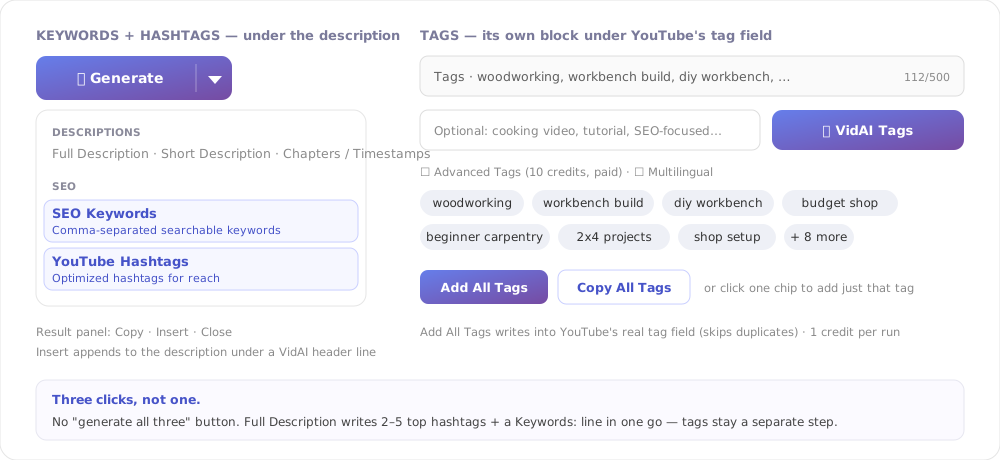
In VidAI: the 🪄 VidAI Tags block sits right under YouTube's tag field. Type an optional hint, click, and you get tag chips generated from the title, description, subtitles (on a connected channel) and your channel profile. Add All Tags writes them straight into the real tag field (skipping ones already there); Copy All Tags copies the comma-separated list; clicking one chip adds just that tag. 1 credit. Advanced Tags (paid, 10 credits) adds an importance score per tag and the multilingual option — how that scoring works and why five languages fit in 500 characters.
Hashtags — public, clickable, with rules
Where: in the description (or the title), as ordinary text starting with #. Every hashtag becomes a link to a page of videos using the same tag.
YouTube's rules — these are the ones people get wrong:
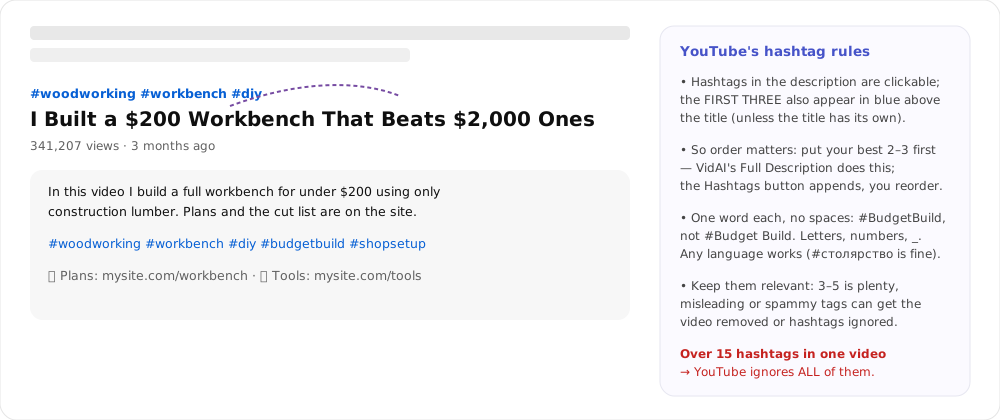
- The first three hashtags in your description are displayed above the title, in blue (unless the title itself contains hashtags). So order matters — put your best two or three first.
- More than 15 hashtags on a video → YouTube ignores all of them. Not "the extra ones" — all of them.
- One word each, no spaces:
#BudgetBuild, not#Budget Build. Letters, numbers, underscores; any language works (#столярствоis a valid hashtag). - Keep them relevant. Misleading or spammy hashtags can get the hashtags ignored or the video removed.
What they do: a light discovery signal — the hashtag page, the above-title links, a topical hint. Three to five good ones is plenty.
In VidAI: Generate ▾ → SEO → YouTube Hashtags. It generates, by default, 5 hashtags (3–10 in settings) in the video's language, each a single #CamelCase word, optionally always including your channel's own hashtag (#YourChannel — a per-channel setting). The result is a single line; Insert appends it to the end of the description under a 🏷️ 🔎 VidAI Hashtags: header. 1 credit.
Two things VidAI does not do for you here, so do them yourself: it doesn't move the best three to the top of the description (cut and paste them there, or drop the header line), and it doesn't stop you inserting twice — keep the total under 15. (VidAI's Full Description generator does place 2–5 hashtags at the very top automatically.)
Keywords — not a field, a practice
Where: nowhere in Studio. Keywords are the words and phrases people type into YouTube and Google search — and a video "has" a keyword only if that phrase appears in its title, description, spoken content (captions) or tags. There is no keyword box.
What they do: they're the actual matching signal for search. "How to build a workbench" in the title is worth more than any tag. Keywords are also the raw material for the other two: a keyword becomes a tag in the tag field and a #Keyword in the description.
In VidAI: Generate ▾ → SEO → SEO Keywords. From the title, description, the subtitles (connected channels), your channel's top-performing videos and any focus areas you've set, the AI proposes 12 keywords or short phrases by default (setting 5–25; up to 15 are returned), in the video's language. It's AI judgement about what people search for — VidAI has no search-volume database, and neither do most "keyword tools" pointed at YouTube; treat the list as strong ideas, not measured demand. 1 credit.
Insert appends the list to the end of the description under a 🌍 🔎 VidAI Discovery: line. That's a convenience, not the goal: the real work is to weave two or three of them into your title and the first lines of the description, where search reads them — then trim or delete the pasted list. A bare keyword list at the bottom is harmless but does little.
The three buttons, side by side
| Tags | Hashtags | Keywords | |
|---|---|---|---|
| Button | 🪄 VidAI Tags block | Generate ▾ → SEO → YouTube Hashtags | Generate ▾ → SEO → SEO Keywords |
| Output | Tag chips | One line of #Hashtags |
5–15 words/phrases |
| Where it goes | YouTube's tag field (Add All Tags) | Appended to the description | Appended to the description |
| Default count | Fits 500 chars | 5 (3–10) | 12 (5–25, max 15) |
| Language | Video's | Video's | Video's |
| Credits | 1 (Advanced 10) | 1 | 1 |
There is no single "generate all three" button — it's three clicks, each with its own hint box. The one place that comes close is Full Description (20 credits), which writes top hashtags and a Keywords: line into a complete description in one go. And all three read the same inputs: your video's real text and subtitles, your channel's voice, banned phrases and top performers, so they agree with each other.
A sane workflow (five minutes per video)
- Keywords first — generate, pick the 2–3 phrases that truly describe the video.
- Title and first two lines — make sure those phrases appear there, naturally.
- Tags — generate, Add All Tags, delete any that don't fit.
- Hashtags — generate, move the best three to the top of the description (or into the title), keep the total under 15.
- Analyze — run VidAI's SEO Analyzer: it scores tag and hashtag counts, checks whether your keywords appear in the title, description and tags, and awards points for chapters and subtitles.
Settings (per channel)
In ⚙ settings or vidai.help Settings: keyword count (5–25), focus areas (free text: "docker, postgres, ruby internals" — topics to lean into), hashtag count (3–10), always include the channel hashtag, and the shared SEO influence knob that lets paid accounts reuse proven tags and hashtags from up to three inspiration channels. Available on every plan.
FAQ
Do tags still matter in 2026? A little. YouTube says they're minor for discovery; they still help with misspellings and classification. Fill them in, don't agonize.
Should hashtags go in the title or the description? Description, top. Title hashtags override the above-title display and use up title characters.
Can I put 30 hashtags to be safe? No — over 15 and YouTube ignores every hashtag on the video.
Does VidAI know search volumes? No, and it doesn't pretend to. Keywords and tag scores are AI judgement grounded in your video and channel.
Are these free? 1 credit per generation each; Advanced Tags is 10. VidAI's public Hashtag Generator and Keywords Builder are free without an account, 10 runs a day.
Can I see another video's tags? Yes — the Info button on youtube.com lists any video's tags and hashtags.
Try the trio on your next upload: Install VidAI — Generate ▾ → SEO, plus the Tags block under the tag field.